Troubleshooting Guide
Fix local AI processing issues or use LM Studio as a workaround.
Important: Performance Trade-off
When using the LM Studio workaround (CPU inference), processing a file takes approximately 10–14 seconds instead of ~0.5 seconds with GPU acceleration. This is because CPU inference is significantly slower than GPU processing.
Before You Start
First, check these common issues:
- 1Update your GPU drivers – Make sure you have the latest drivers for your graphics card (NVIDIA, AMD, or Intel).
- 2Install the latest RenameClick version – Download the newest version from the website.
- 3Ensure at least 4 GB of free RAM – The local AI model requires sufficient memory to run.
If these steps don't resolve your issue (e.g., Intel Arc GPU, insufficient VRAM, or CPU fallback problems), try the LM Studio workaround below.
LM Studio Workaround
Install LM Studio
Download and install LM Studio from: lmstudio.ai
Download the AI Model
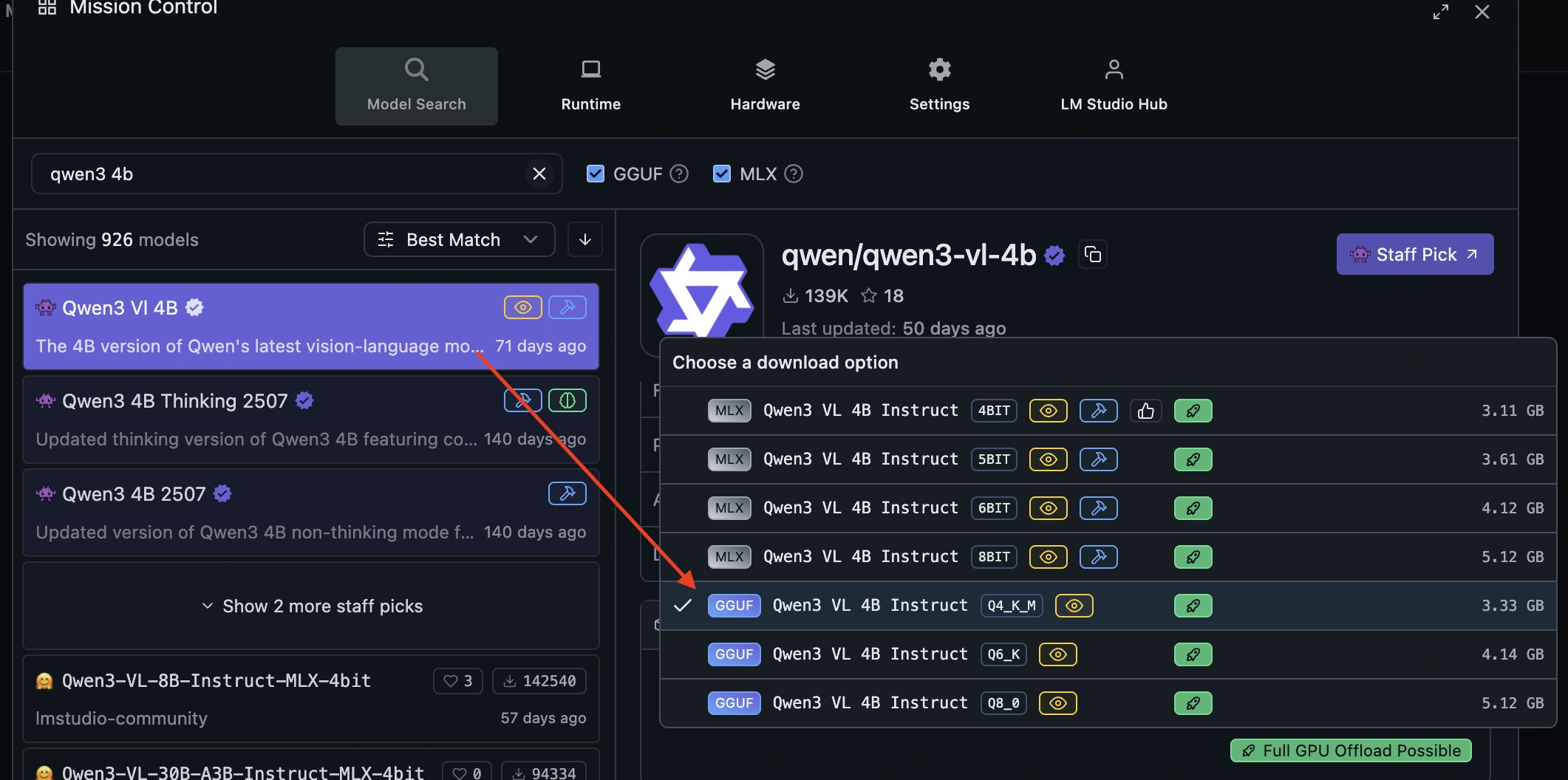
- 1. Open LM Studio
- 2. Go to the Search tab
- 3. Search for
qwen3-vl-4b - 4. In Download Options, choose: Qwen3 VL 4B GGUF Q4_K_M
- 5. Click Download (≈ 3.33 GB)
Start the LM Studio Server
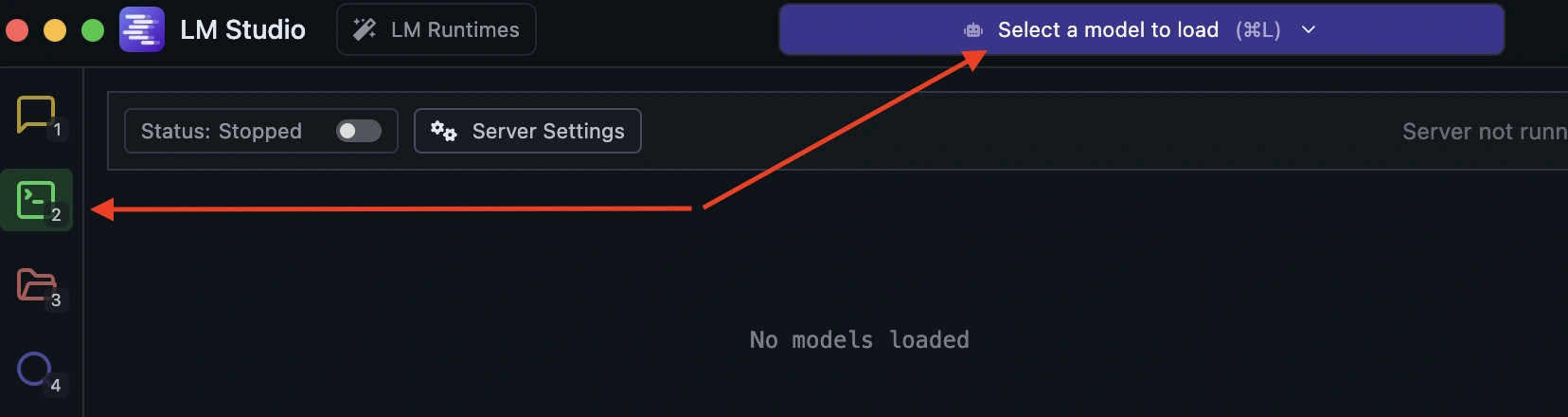
- 1. Go to the Developer tab (or click the green icon in the left sidebar)
- 2. Load the downloaded model
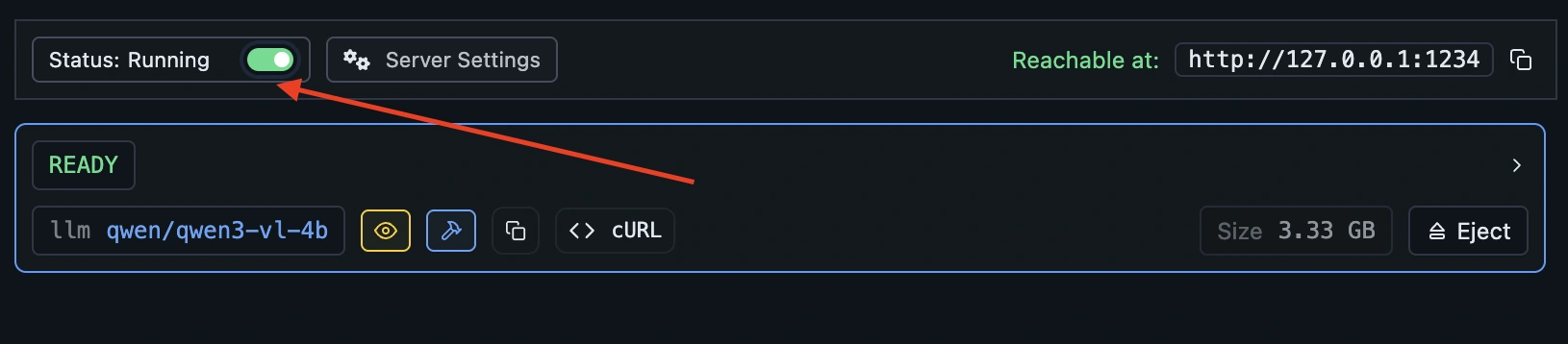
- 3. Click Start Server – It should start on:
http://localhost:1234
Configure RenameClick
- 1. Open RenameClick
- 2. Click the provider dropdown (currently showing "Local")
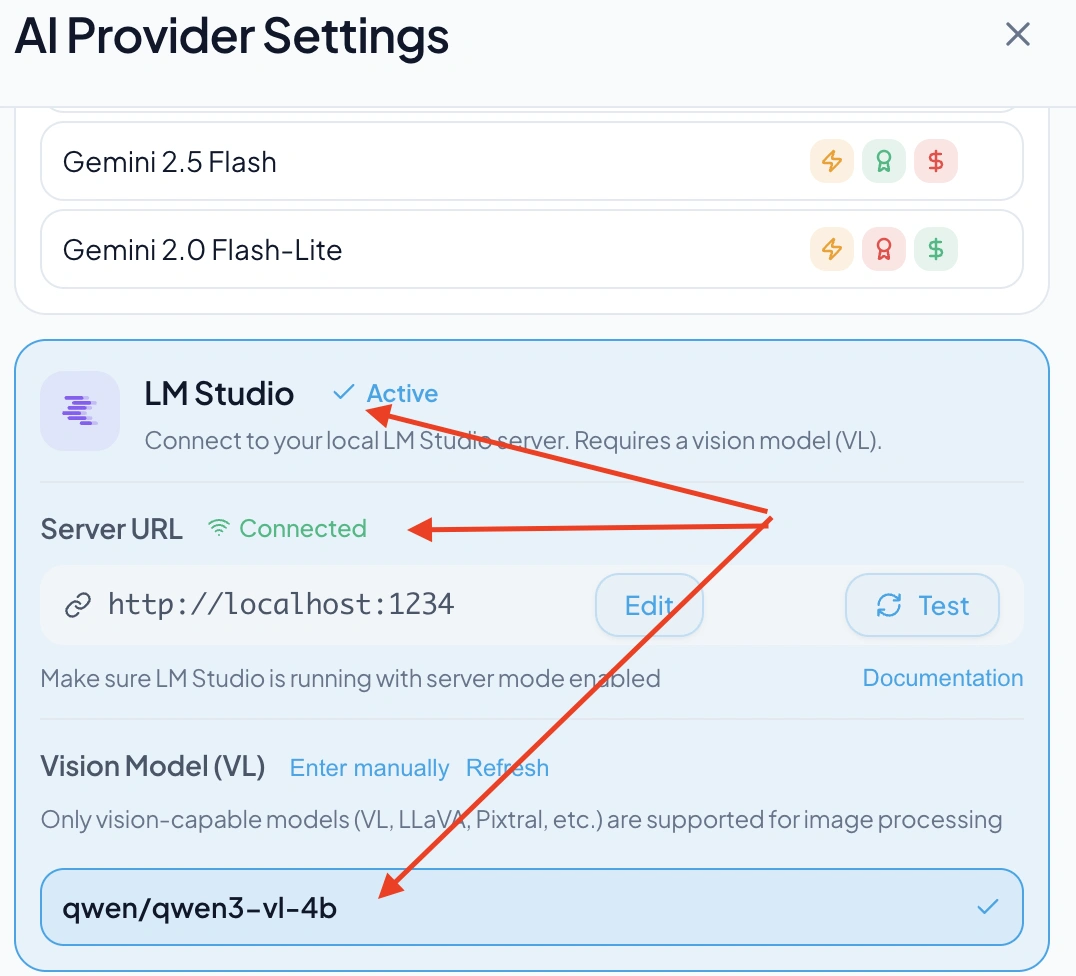
- 3. Select LM Studio – it should show as green (connected)
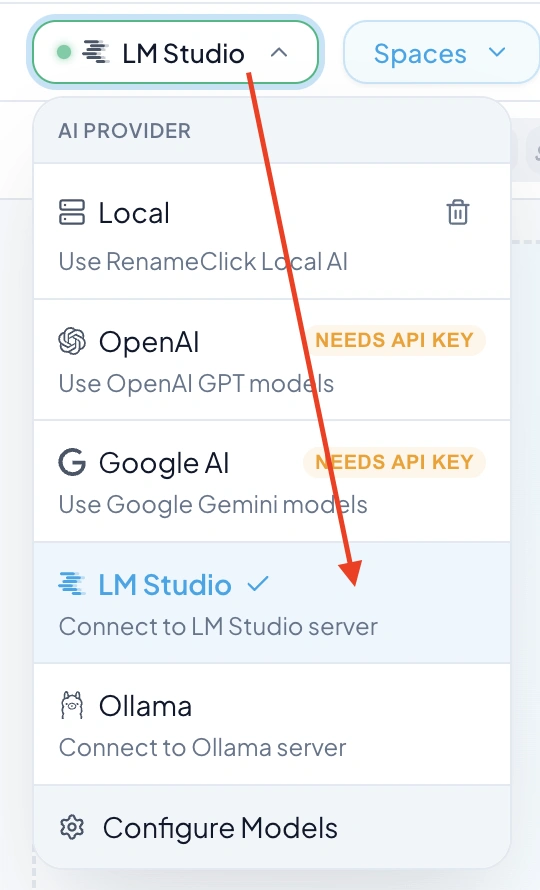
If LM Studio is not green, go to "Configure Models", refetch LM Studio, and select the qwen3 VL 4b model:
Still Having Issues?
If the workaround doesn't work or you'd like us to add better support for your hardware, open the floating support form (bottom-right) to contact us. You can also email support@pithly.app.
Please include:
- Your GPU model (e.g., Intel Arc A770, NVIDIA RTX 3060)
- Your CPU model (e.g., Intel i7-12700, AMD Ryzen 7 5800X)
- How much RAM your system has (e.g., 16 GB)
- A brief description of the error or issue you're experiencing