RenameClick organizes files in three ways: AI can choose a folder from a list based on file content, a deterministic rule can build a folder path from metadata, or AI can route a file into folders that already exist. These workflows are called AI Categories, Metadata Folders, and Match Folders.
This guide shows when to use each workflow and how to review the proposed names and destinations before anything changes on disk. You can rename only, categorize only, or apply both actions together.
For the product overview, supported platforms, and download options, see AI File Organizer for Mac and Windows.
On this page
Key takeaways
- Use AI Categories when the destination depends on what a file contains.
- Use Metadata Folders when dates, EXIF fields, or fixed text should define the folder path.
- Use Match Folders when the destination already contains the client or project folders you need.
- Review names and destinations before applying selected rows to disk.
- The Local provider runs on-device after its one-time model download; cloud providers are optional.
Choose the workflow by how the folder is decided
The folder source determines the preset type. Do not use an AI category when the path should come directly from a date or EXIF field, and do not recreate a client tree when those folders already exist.
AI Categories
Source: File content
Result: Choose from a preset list
Metadata Folders
Source: Date, EXIF, or fixed text
Result: Build a repeatable folder path
Match Folders
Source: Existing destination folders
Result: Choose an existing top-level folder
| Preset type | Folder source | Use when |
|---|---|---|
| AI Categories | File content | The file must be classified as an invoice, contract, screenshot, or another defined category. |
| Metadata Folders | Date, EXIF, or fixed text | The path should be deterministic, such as Location / Year / Month. |
| Match Folders | Existing destination folders | New files should continue an existing client or project structure. |
All three preset types support Rename only, Categorize only, or Rename & Move. The detailed behavior is documented in Organize & Sort Files into Folders with AI.
Run a review-first organizer workflow
RenameClick can suggest a filename, a destination folder, or both, depending on the selected mode. With the Local provider after its one-time model download, supported documents and images are analyzed on your computer. Cloud providers remain optional.
- Choose Rename only, Categorize only, or Rename + Categorize.
- Select an AI Categories, Metadata Folders, or Match Folders preset when categorization is enabled.
- Add supported files or a folder to the Rename workspace.
- Review suggested names and folders. Edit names, deselect rows you do not want to apply, and retry files that failed processing.
- Apply only the selected rows.
What changes before Apply?
Analysis creates suggestions only. Original extensions are preserved, duplicate target names are made unique, and no rename or move is written to disk until you apply the selected rows.
Folder drops are non-recursive by default; enable Recursive when nested folders should be included. The full workspace controls are listed in the Rename Workspace documentation.
Workflow 1: AI Categories for content-based folders
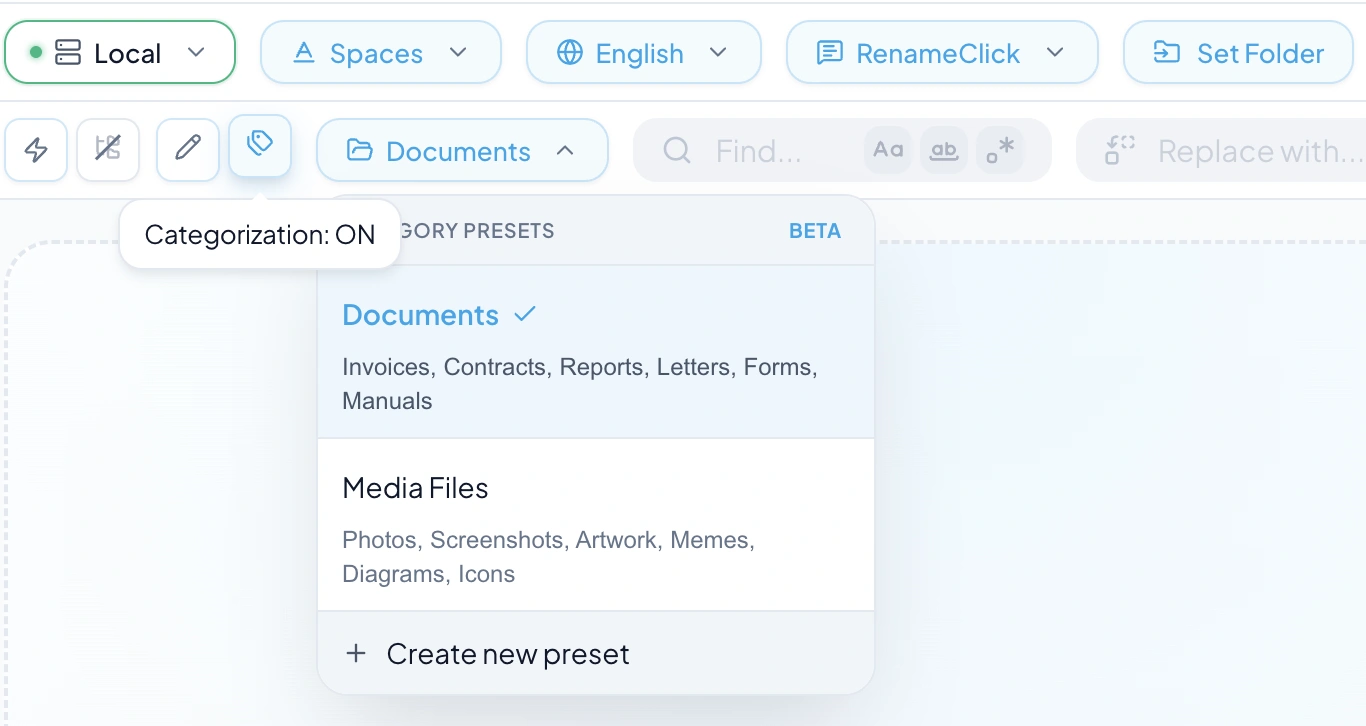
The AI Categories workflow reads each supported file and chooses from the categories in the selected preset. Use it when the destination depends on meaning rather than a date, extension, or existing folder name.
Documents
Invoices, Contracts, Reports, Letters, Forms, Manuals.
Media Files
Photos, Screenshots, Artwork, Memes, Diagrams, Icons.
Built-in presets are view-only. For a custom workflow, create a preset with your own category names and optional descriptions. Descriptions are useful when names such as Client Invoices and Vendor Receipts need a clearer boundary.
When no category fits
AI Categories can return no category. The file then stays uncategorized instead of being forced into an unrelated folder.
Workflow 2: Metadata Folders for repeatable paths
The Metadata Folders workflow builds the destination path from values already attached to a file. Use it for chronological photo archives, camera imports, or another structure that should produce the same path from the same metadata.
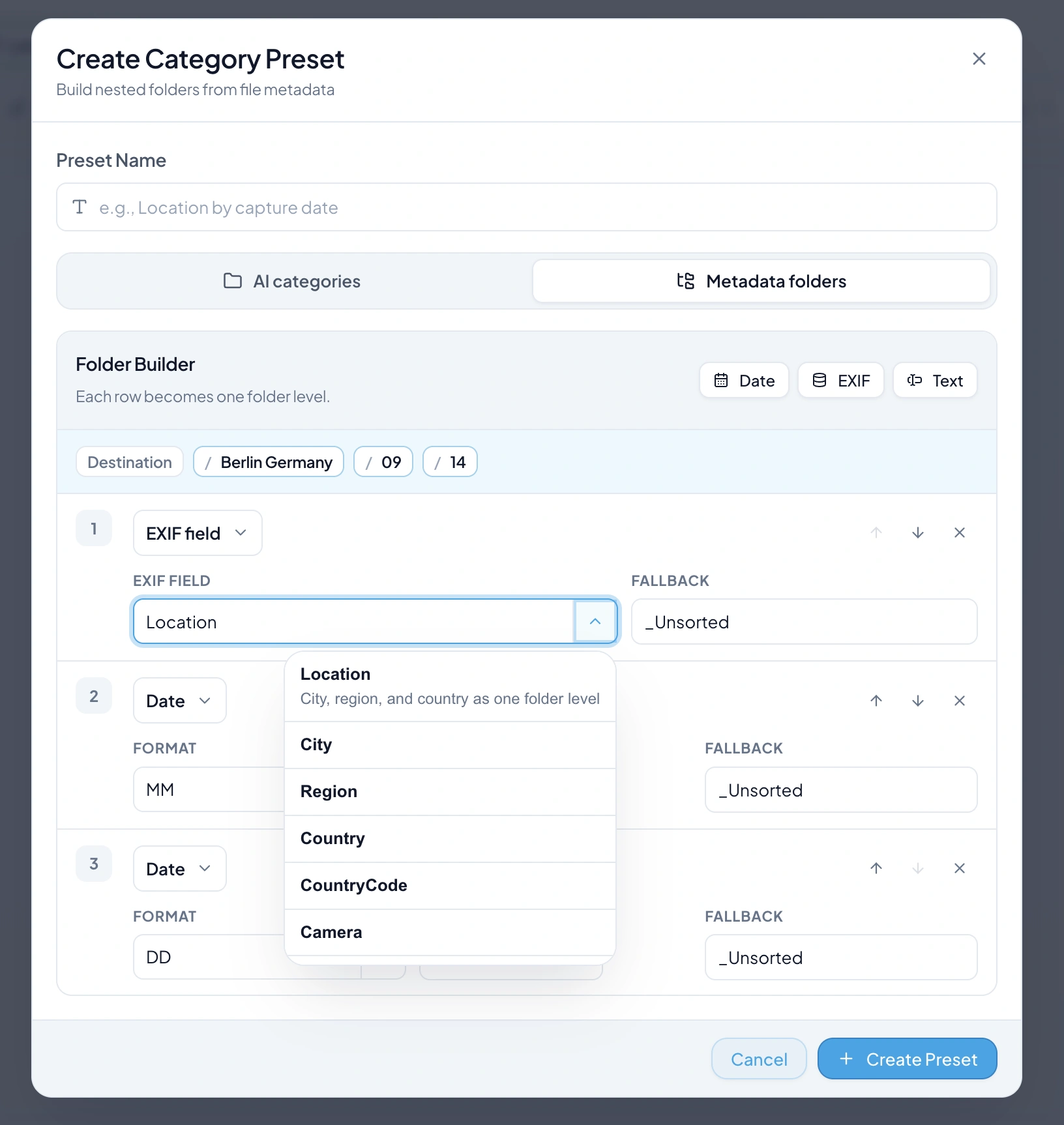
- Date: EXIF capture date, created date, or modified date.
- EXIF: location, city, country, camera, lens, or another raw EXIF field.
- Text: a fixed level such as Archive or Client Photos.
A preset can produce a path such as Berlin Germany / 2026 / 04 / 30. If a metadata value is missing, use the configured fallback folder for that level.
Workflow 3: Match Folders for an existing structure
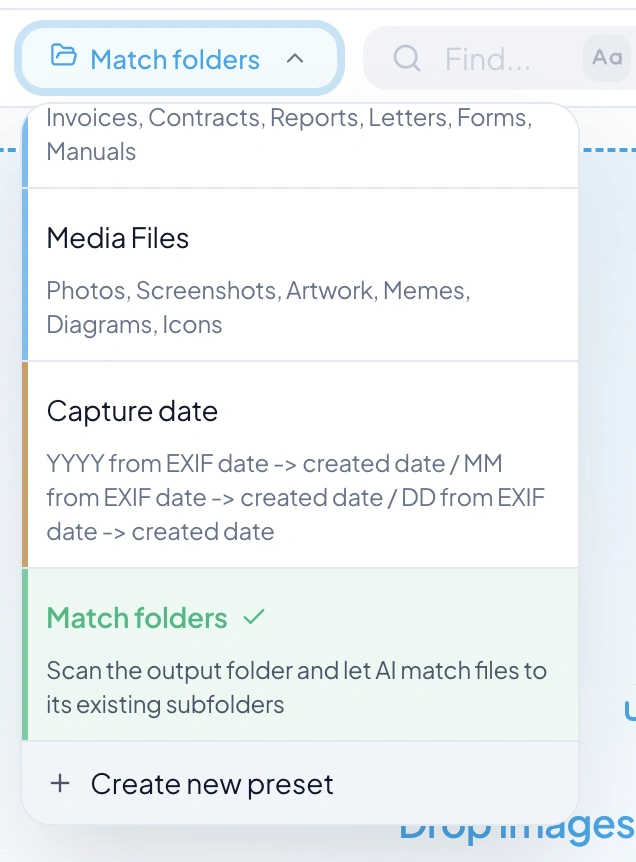
Match Folders scans the top-level subfolders inside the selected destination and uses those folder names as the available choices. It is intended for structures that already exist, such as client, project, or archive folders.
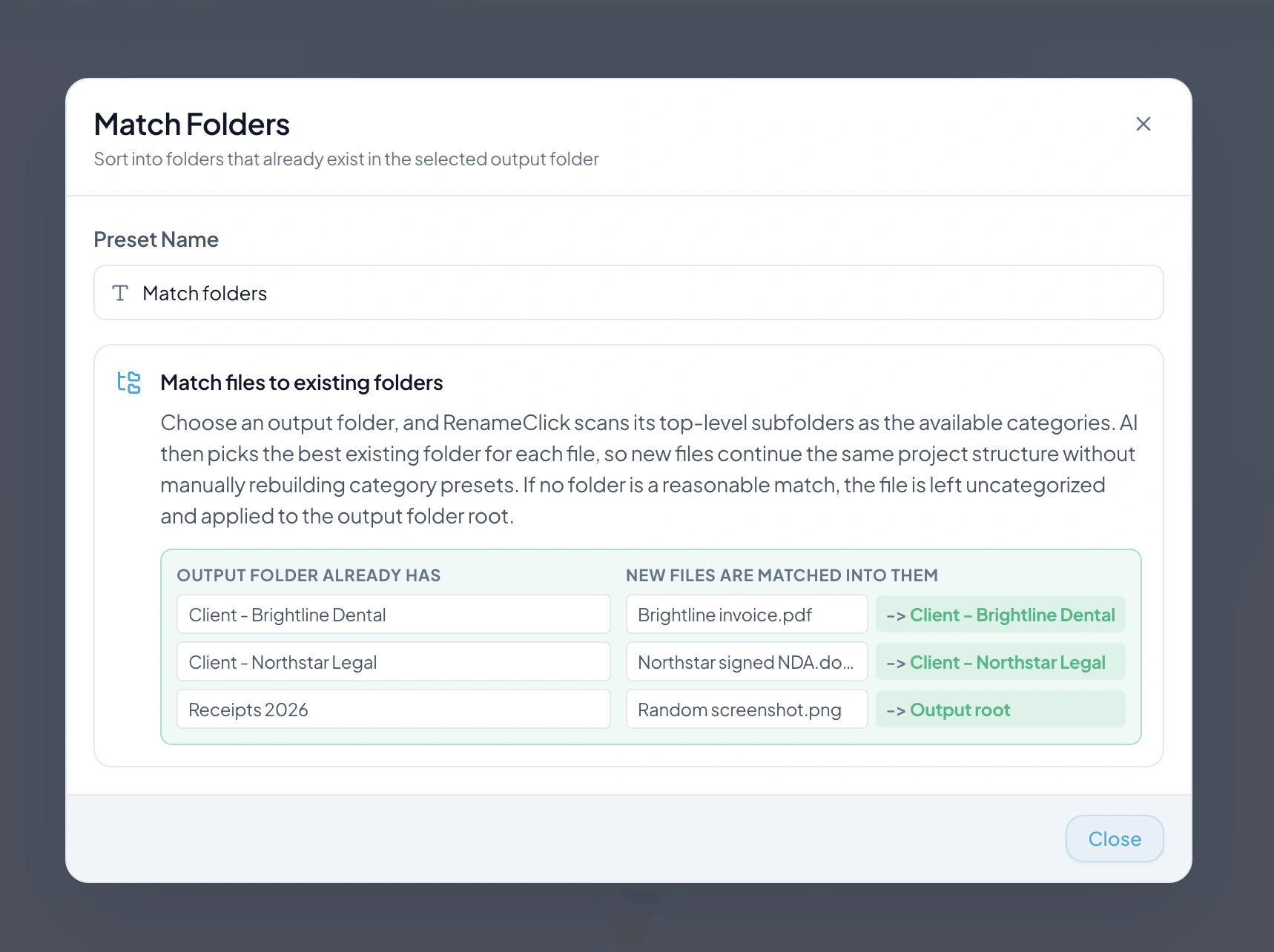
For example, if the destination contains Client - Brightline Dental, Client - Northstar Legal, and Receipts 2026, those are the folders RenameClick can choose from.
When no existing folder matches
The file stays uncategorized and is applied to the destination root. Match Folders does not invent a new folder when none of the scanned folders is a reasonable match.
Review names and destinations before Apply
Analysis and Apply are separate. Before writing changes to disk, the Rename workspace lets you edit individual suggested names, run Find & Replace across generated names, deselect rows, and retry files that failed processing.
- Rename only: selected files keep their current location.
- Categorize only: selected files keep their original names and move to folders.
- Rename + Categorize: selected files receive the approved names and folders.
For applied renames, Undo and Redo restore the previous names and locations as documented in the Rename workspace. Auto Flow has its own boundary: Watch must be off before Undo or Redo is available.
Start with a representative batch
Check a small set that includes the file types and folder cases you expect. If AI categories overlap, clarify their descriptions before processing a larger folder.
Supported files and scanned-PDF behavior
RenameClick supports the image, document, structured-text, and spoken-audio formats listed in the Supported File Types documentation. Unsupported extensions are skipped during file and folder intake.
Images
JPG, PNG, WebP, AVIF, HEIC, TIFF, SVG, and the other documented image extensions.
Documents and text
PDF, DOC, DOCX, TXT, MD, CSV, RTF, ODT, JSON, XML, YAML, HTML, and the other documented formats.
Text PDFs use extracted text. When a PDF has no extractable text, RenameClick renders the first page and analyzes it as an image. That first-page boundary matters for multi-page scans whose identifying information appears later.
Automate only after choosing the provider and review mode
Auto Flow can reuse the same sorting preset in a watched-folder row. With Auto Apply off, new files are processed and remain in the Processed list for review. With Auto Apply on, configured renames or moves are applied automatically.
- Use a separate Auto Flow row for each source and destination workflow.
- Keep Auto Apply off when the results should be approved manually.
- Turn Watch off before using Auto Flow Undo or Redo.
Provider choice is independent from the folder workflow. The Local provider runs on-device after its one-time model download. If you deliberately select OpenAI, Google Gemini, or Alibaba Cloud, active processing communicates with that provider.
See the exact watch behavior in the Auto Flow documentation and provider behavior in AI Providers.
FAQ
Which RenameClick folder workflow should I use?
Can I organize files without renaming them?
Can this file-organization workflow run offline?
What happens when no category or existing folder matches?
How does RenameClick handle scanned PDFs?
Can Auto Flow keep results for review?
Want to try this workflow?
With the Local provider after the one-time model download, RenameClick can run offline and helps you rename and organize files by content with a review-first flow.