
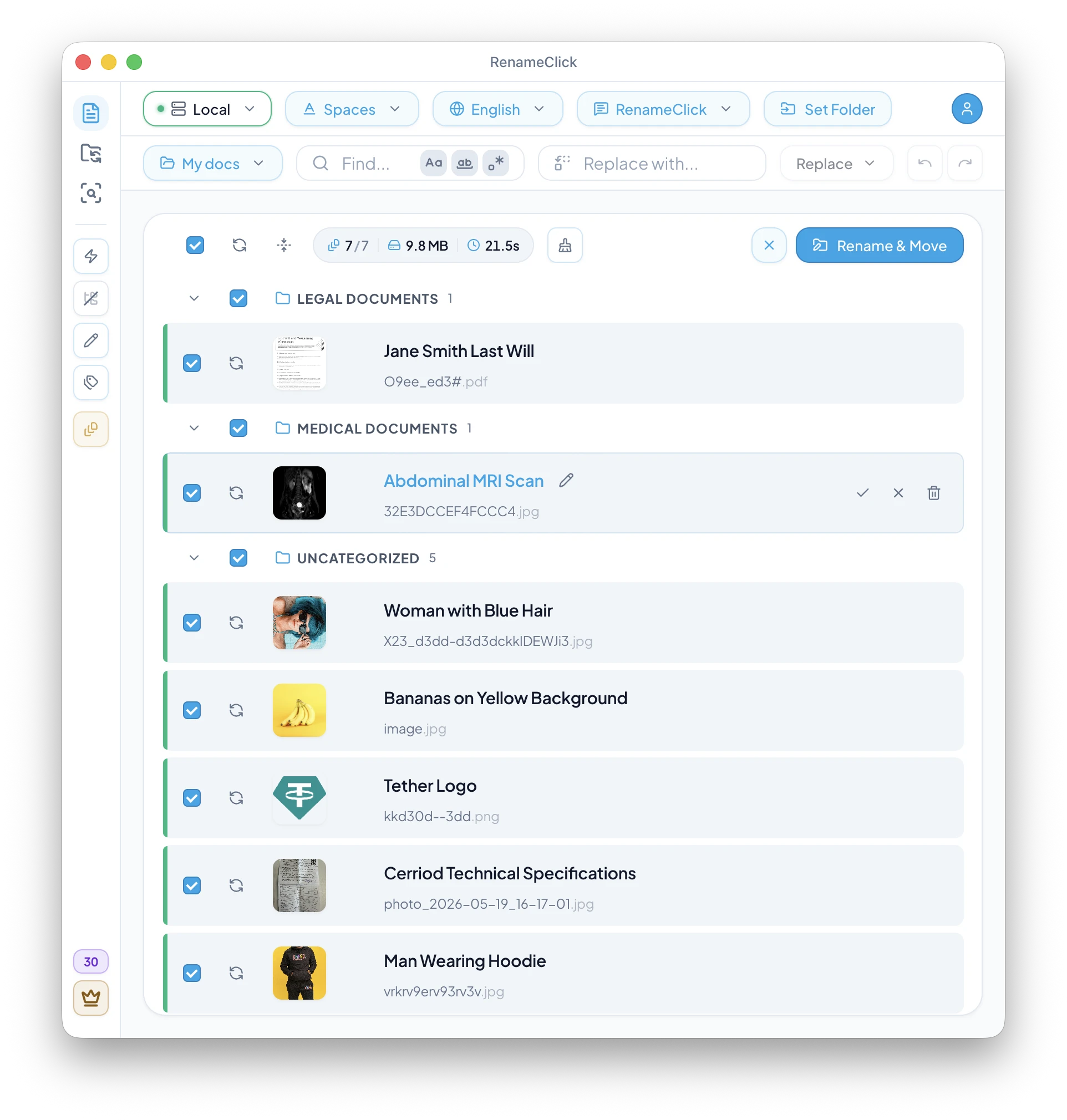
An AI file renamer looks inside an image or document and generates a descriptive filename based on what the file actually contains — not the random camera name or generic scan label.

Key takeaways
- Good filenames are short, specific, and consistent.
- AI renamers work best with a review-first workflow.
- Custom prompts are great for structured docs (invoices, receipts).
- EXIF/date placeholders keep photo naming consistent.
What is an AI file renamer?
File renaming sounds simple until you try to do it at scale. If you rename one file, you can be thoughtful. If you rename 200, you either give up or you create a scheme that no one remembers.
AI helps when you treat renaming as a workflow, not a one-off guess. You start by testing prompts on a small, representative set of files to see how the model interprets the content and follows your naming rules. Once you dial that in, you can run a batch rename with high confidence—often 95%+ of files end up with the right names, without per-file validation, and you only spend time on the few exceptions.
A strong AI renamer also respects your workflow: it preserves file extensions, avoids invalid filename characters, and can keep names consistent across different file types.
Supported file types
If your files are a mix of photos, screenshots, and PDFs, support matters. RenameClick supports common formats used in real workflows:
Images
JPG, JPEG, PNG, GIF, WebP, BMP, SVG, HEIC, HEIF, TIFF, TIF.
Documents
PDF, DOC, DOCX, TXT, MD, CSV, RTF, ODT.
For scans and screenshots, OCR quality matters. The same “invoice” can be trivial to rename when it’s a text PDF and much harder when it’s a low-contrast photo of a receipt. The best workflow is still batch processing with quick review.
What good filenames look like (rules that scale)
A good filename answers: What is it? and what context matters?Context can be a date, vendor, project, or location — but too much context becomes noise.
Practical rules for scalable naming:
- Keep names short (think: 5–10 words).
- Include a date prefix when chronology matters.
- Keep a consistent delimiter (underscore or hyphen).
- Avoid “stuffing” every extracted field into the name.
Example
2026-01-05_ACME_Invoice_317.03.pdf (date + vendor + type + total)
How AI file renamers work
Most AI renamers use a mix of techniques:
- OCR for images and scans (reads text from pixels).
- Text extraction for PDFs and documents (when text is embedded).
- Visual understanding for photos (scene recognition, objects, context).
RenameClick uses a local vision-language model to understand images and documents. This lets it create names that are more meaningful than keyword lists — and it can run offline.
RenameClick workflow: drop → review → apply
RenameClick is designed for batch work. You drag & drop files (or folders) and processing starts immediately. Results show the original name and the suggested new name so you can approve or edit.
Folder behavior
By default, dropped folders are processed non‑recursively: only files directly inside the folder are included. If you enable recursive processing, nested folders are included too.
When you’re ready, you apply renames to selected files. Duplicate names are automatically made unique, and file extensions are preserved.
Batch tools: find/replace + undo/redo
Even great AI names sometimes need mechanical cleanup: removing prefixes, standardizing client codes, or fixing a repeated typo. RenameClick includes batch Find & Replace tools so you can edit many filenames at once.
Practical options include:
- Match case and match whole word for safer cleanup.
- Regex mode when you need patterns (for example, removing repeated camera prefixes).
- Navigation between matches so you can spot-check quickly.
- Replace vs Replace all depending on confidence.
- Undo/redo for applied renames/moves (on disk), so you can revert if needed.
Find & Replace (and manual edits) change the suggested names in the list. Nothing changes on disk until you click Apply. Undo/redo covers the on-disk operations after apply, not pre-apply edits.
Regex tip
Use regex only when your rule is unambiguous. If a pattern could remove meaningful text, do a single Replace first, then Replace All after a quick review.
Custom prompts for invoices, contracts, and receipts
For structured documents, you often want specific fields: vendor, total, invoice date, or contract party. Custom prompts let you define extraction rules and output format so filenames become consistent.
Example prompt idea (invoice extraction):
You are an information extraction system.
Input: an image or PDF of an electricity bill.
Task: extract the following fields strictly from the document content:
1. Payable until date
2. Total amount due
3. Payer full name (Name Surname)
Rules:
- Use the date labeled "Payable until" or equivalent.
- Convert the date to ISO format YYYY-MM-DD.
- Amount must be numeric with comma as decimal separator (e.g. 317,03).
- Name must be exactly as written on the bill.
- If any field is missing or unclear, do not guess. Output "UNKNOWN" for that field.
- Do not include currency symbols.
- Do not include extra words or explanations.
Output format (single line, exact):
Electricity Bill__YYYY-MM-DD__Amount__Name Surname
Good example:
Electricity Bill__2025-03-05__317,03__Arthur SullivanCustom prompts are most powerful when paired with a consistent format pattern and a small set of categories (so “Invoice” always lands in the right place).
Practical note: custom prompts must stay within a character limit so they fit into the model context. Also, when a custom prompt is selected, the Output Language setting is typically disabled because your prompt defines the output format.
Prompt design tips (so results stay consistent)
Most prompt problems come from ambiguity. If you want filenames that look consistent across hundreds of files, make your prompt strict and predictable.
- Define the fields you want and the exact output format.
- Tell the AI what to do when a field is missing (use UNKNOWN, don’t guess).
- Keep the output to one line (filenames shouldn’t become paragraphs).
- Prefer stable separators like __ and then convert to your final pattern if needed.
Use patterns for metadata
If you want EXIF date or camera info in photo filenames, put that in the filename pattern (EXIF placeholders), not inside the prompt. Prompts should focus on content extraction.
Formats, dates, and EXIF placeholders
RenameClick supports filename patterns with placeholders and transformations. This is how you keep names consistent without typing. For example:
$date{YYYY-MM-DD}_$1$exif{date,YYYYMMDD}_$1$upper{$2}_$lower{$3}EXIF placeholders are especially useful for photos: you can use capture date, camera, or location when available.

If you want to go deeper, think of patterns as two parts: the AI-generated description and your fixed structure (dates, transforms, casing). That’s how you keep filenames consistent even when content varies.
Patterns are built from placeholders. The most important one is $1, which represents the full AI-generated name. You can also reference individual words and apply transforms to enforce consistent casing.
Common placeholders
- $1 — full AI name
- $2 — first word
- $3 — second word
- $4+ — remaining words
Here are a few practical patterns that stay readable:
Chronological docs
Pattern: $date{YYYY-MM-DD}_$1
Example: 2026-01-05_ACME Invoice 317.03
Photo library
Pattern: $exif{date,YYYYMMDD}_$1
Example: 20240115_Berlin street cafe
Casing consistency
Pattern: $capitalize{$1}
Example: Blood test results
| Goal | Pattern | Example output |
|---|---|---|
| Chronological docs | $date{YYYY-MM-DD}_$1 | 2026-01-05_ACME Invoice 317.03 |
| Photo library | $exif{date,YYYYMMDD}_$1 | 20240115_Berlin street cafe |
| Casing consistency | $capitalize{$1} | Blood test results |
Separator tip
Keep separators consistent. Prefer underscores or hyphens, and avoid dots inside patterns to reduce cross-platform filename issues.
EXIF vs file dates (what you should use)
For photos, you often have two “dates”: the file’s creation/modification date and the EXIF capture date. The file date can change when you copy files between drives or re-export images. EXIF capture date is usually the one you want for chronological photo libraries.
A practical pattern is:
$exif{date,YYYY-MM-DD}_$1For documents (PDFs, DOCX), use file dates when appropriate:
$date{YYYY-MM-DD,modified}_$1In general: use EXIF for camera photos, and file dates for “digital-born” documents.
Output language for filenames
If you work in multiple languages, a good AI renamer should generate filenames in the language you actually use. RenameClick supports an Output Language setting for generated filenames (and keeps brand names and proper nouns intact).
Note: when you use fully custom prompts, the output language selector is typically disabled because your prompt defines the format.
Limitations and edge cases
AI renaming is not magic. You’ll still see edge cases:
- Blurry scans or low-resolution screenshots reduce OCR accuracy.
- Very long documents may require trimming.
- Ambiguous content (multiple topics in one PDF) can produce generic names.
- Handwritten notes and stylized fonts can confuse OCR.
- Documents with many tables can require more explicit prompts for consistent extraction.
The fix is usually process + review. The goal is not 100% autonomy; it’s a workflow that makes the remaining 10% easy to correct.
If you work with long reports, tune the workflow rather than forcing the AI to read everything: trim input, focus prompts on the exact fields you need, and keep filenames short. This tends to improve both accuracy and speed.
For multilingual libraries, output language and casing transforms help keep names consistent. It’s better to have “one naming style” than a mix of English keywords, local language phrases, and random casing.
Performance issues?
If local inference is slow on your machine, use the troubleshooting guide to improve stability or use a supported workaround (like LM Studio) while keeping your workflow intact.
Offline vs cloud AI renamers
Cloud AI tools can work well, but they require uploading content. If your files are sensitive, offline renaming is a meaningful advantage. RenameClick runs local AI by default and supports optional cloud providers when you choose to connect them.
A practical approach is to keep sensitive workflows local (IDs, contracts, client documents) and use cloud providers only when you explicitly need them. If you want details on how data is handled when you connect third-party AI providers, see the privacy policy.
If you do use a cloud provider, start with a small, non-sensitive sample and keep a review-first flow. The right balance is usually “cloud for convenience, local for privacy.”
If your next step is sorting into folders, read AI File Organizer and AI File Sorter.
FAQ
Is an AI file renamer accurate enough for important documents?
Can RenameClick rename files offline?
Can I rename photos using EXIF dates?
Does batch renaming support find/replace?
What is the best next step after renaming?
Want to try this workflow?
RenameClick runs offline by default and helps you rename and organize files by content — with a review-first flow.