Blogai file sorter

AI File Sorter: Automatically Categorize & Move Files

A practical guide to AI file sorting: presets, custom categories, and automated watch-folder workflows with RenameClick.

Published: Jan 29, 202610 min read

An AI file sorter is a watch-folder workflow: it monitors one or more intake folders and automatically routes files into the right place. Instead of doing a “cleanup day,” your files get renamed and/or categorized and moved into the right folders as they arrive.

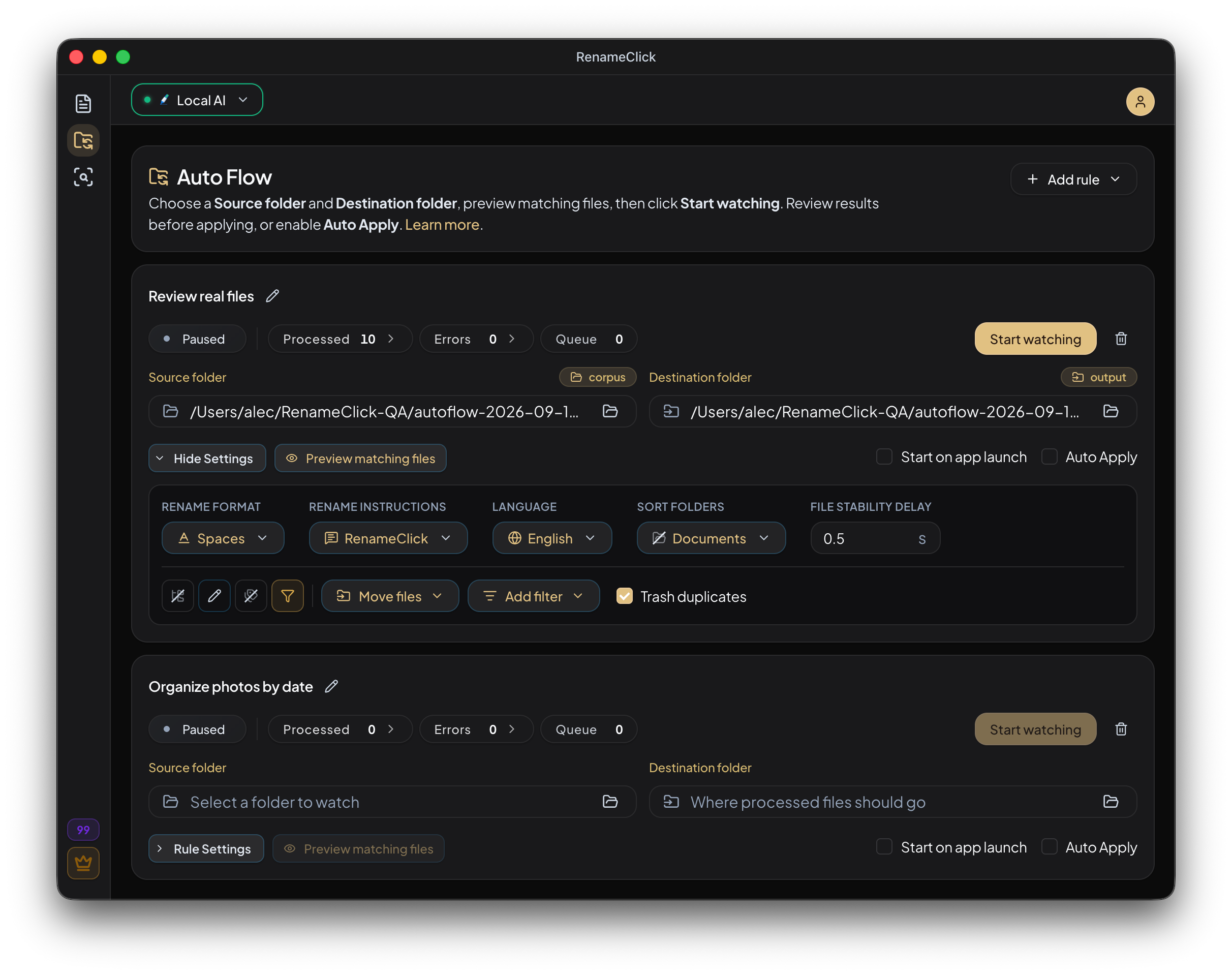
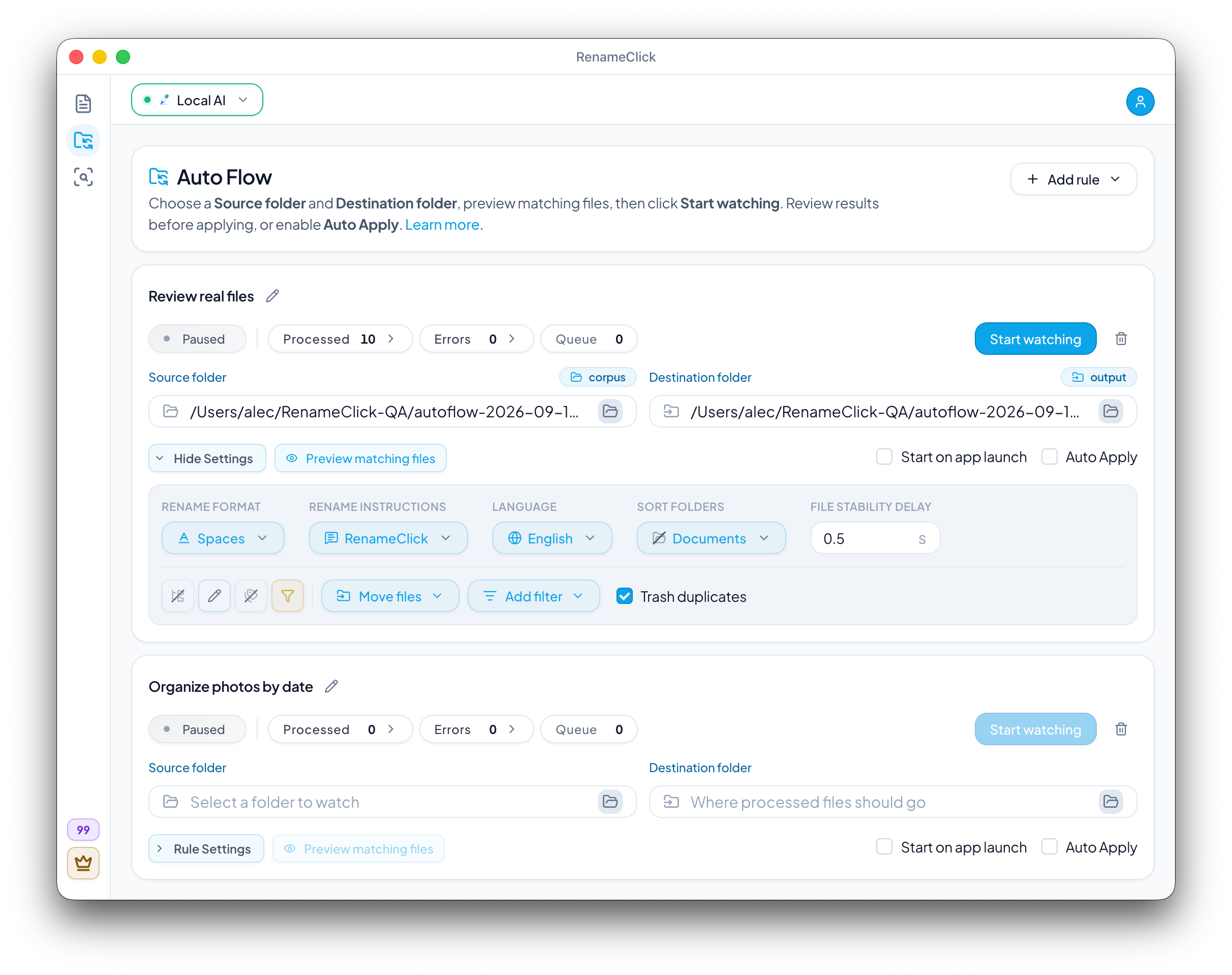
In RenameClick, this is Auto Flow. You choose the workflow—rename only, categorize only (from presets, without changing filenames), or rename + categorize—and the same preset + naming format is used across all watched folders. Then, for each row, decide whether changes are applied automatically (hands-off) or held for review (safe-by-default).

RenameClick Auto Flow watch-folder automation
Auto Flow: watch folders, then rename and/or categorize and move automatically.

Key takeaways

  • Auto Flow turns sorting into a continuous pipeline.
  • Choose a workflow: rename, categorize, or both.
  • Use multiple source → destination rows for different streams.
  • Start review-first, then enable Auto Apply with undo/redo.

What is an AI file sorter?

A file sorter is a system that handles every file in an “intake” folder and answers three questions: what is it?, how should it be named? (optional), and where should it go?

The “sorter” part is the automation: it applies the decision by renaming and/or moving the file on disk. That’s why reliability matters more than big accuracy claims—you want predictable rules and a fast way to recover from mistakes.

If you want the real “AI file sorter” benefit, prioritize tools that support:

  • Processing vs applying (preview results before changing anything on disk).
  • Multiple intake folders (Downloads, Screenshots, Scans) so you can watch where files actually land.
  • Automation levels you control (review-first vs hands-off).
  • Session history + undo/redo for applied renames and moves.

Renamer vs organizer vs sorter (and the 3 workflows)

People often use these terms interchangeably, but they map to different actions:

  • AI file renamer: generates meaningful filenames from file content.
  • AI file organizer: assigns categories (folders) based on content.
  • AI file sorter: runs the workflow continuously and applies changes on disk (usually via watch folders).

RenameClick combines all three. In Auto Flow, you choose one workflow (applied across watched folders):

  • Rename only: keep filenames clean, optionally move everything to one destination.
  • Categorize only: sort into preset folders while keeping filenames unchanged.
  • Rename + categorize: rename files and route them into categories.

If you’re doing a one-time cleanup, start with batch renaming or organizing. If you want an always-on intake system for new files, sorting (Auto Flow) is the right layer.

See also: AI File Renamer and AI File Organizer.

Build a watch-folder intake pipeline (instead of cleanup day)

The biggest file-management breakthrough is changing the timing. Instead of sorting once a month, you build an intake pipeline that handles files as they arrive.

A practical Auto Flow pipeline looks like this:

  1. Pick intake folders (Downloads, Screenshots, Scans, Client Uploads).
  2. Choose one preset (categories) and a naming format (optional) for Auto Flow (shared across rows).
  3. Choose the workflow: rename, categorize, or both.
  4. Set up source → destination rows (you can point multiple sources to one destination).
  5. Turn Watch on to process existing files and keep monitoring for new ones.
  6. Start review-first, then enable auto-apply only on the rows where mistakes are cheap.

Why this works

The cost of sorting is nonlinear. Sorting 10 files feels easy; sorting 5000 feels impossible. A watch-folder workflow keeps the batch size small, so the habit sticks.

RenameClick Auto Flow: watch folders + rules + optional auto-apply

Auto Flow is RenameClick’s automated processing feature. You configure one or more rows—each row defines a source folder, a destination folder, and whether changes are auto-applied. Your preset, naming format, prompts, and output language apply across all rows.

When Watch is on, Auto Flow queues files from your source folders and keeps listening for new files. Depending on your settings, it either applies changes automatically or waits for your approval.

  • Category presets to sort by content (built-in or custom).
  • Custom format patterns to control filenames (or keep names unchanged).
  • Custom prompts for specialized documents (invoices, receipts, reports).
  • Output language for generated filenames.

Think of Auto Flow as the automation layer on top of RenameClick’s renamer and organizer: same AI, but running continuously.

Watch Mode vs Auto Apply: how to keep sorting safe

Each row has two toggles that define how “automatic” it is:

  • Watch Mode: monitors that source folder and queues files as they appear.
  • Auto Apply: applies renames/moves automatically for that row. When off, files are processed and wait for approval.

The most common failure mode of file automation is “silent damage.” A sorter moves files, and you only notice weeks later that invoices ended up in the wrong folder. That’s why rollout strategy matters more than raw AI accuracy.

A practical way to use Auto Flow:

  • Start with Auto Apply OFF (review-first). You see proposed names and categories before anything changes on disk.
  • Turn on Auto Apply ON only for low-risk folders (Screenshots, memes, downloads that are easy to re-download).
  • Keep sensitive categories (Invoices, Contracts, IDs) in review mode until you’re confident.

Multiple sources and destinations (rows)

Real file systems have multiple intake streams. Downloads is one, but Screenshots and Scans are usually separate. Auto Flow supports multiple source-to-destination rows so you can watch several folders at once.

All rows share the same preset, naming format, custom prompt/instructions, and output language. Each row controls the source and destination folders, and has its own Watch + Auto Apply settings.

Example mappings

  • Downloads → Organized
  • Screenshots → Organized
  • Scans → Organized

You can route each source folder to its own destination folder—or send several sources into one shared destination folder and let categories split them inside.

Presets, custom prompts, and naming formats

Sorting is only as good as your rules. Auto Flow combines three building blocks:

  • Category presets (built-in and custom) decide where files should go.
  • Custom format patterns decide how filenames should look (optional).
  • Custom prompts are for structured extraction (invoices, receipts, reports).

A useful mental model: presets decide the folder, patterns decide the filename, and prompts only matter when you want specific fields (dates, totals, customer names) instead of a general description.

If you want deep guidance on naming formats, start with AI File Renamer. For category design, see AI File Organizer.

Supported files and content types

Sorting is only as good as the sorter’s ability to understand your inputs. RenameClick supports common document and image formats, which matters because many workflows are mixed: screenshots with text, scanned PDFs, photos of whiteboards, and real PDFs.

Images

JPG, PNG, HEIC, WebP, TIFF, and more.

Documents

PDF, DOCX, TXT, MD, CSV, and more.

For best results, keep categories distinct and match them to content signals. For example, invoices and contracts typically contain strong text markers, while photos and screenshots rely more on visual context.

Processed vs applied + undo/redo

Safe automation needs “accounting.” Auto Flow tracks what happened in a Watch session so you can audit the system:

  • Processed files: analyzed and waiting for approval (when Auto Apply is off).
  • Applied files: files that were renamed/moved on disk during the session.

Undo/redo covers the applied operations (on disk). If something looks wrong, undo it, adjust the row (preset, prompt, format), and re-apply.

If you’re evaluating a file sorter, ask yourself one question: “If it makes a mistake, how quickly can I recover?” Undo/redo is the answer that makes automation practical.

Start in Manual Apply mode

Run Auto Flow with Auto Apply OFF for a week. When you feel confident, turn it on for low-risk folders (Screenshots), then expand to higher-stakes folders (Invoices, Contracts).

Common setup examples

Here are simple configurations that work well in practice:

Personal

Downloads → Documents (rename + categorize, Auto Apply off). Screenshots → Media Files (categorize only, Auto Apply on).

Freelance

Client uploads → one destination folder, rename + categorize with a custom preset and strict naming format.

Team / shared drive

Shared intake → review-first, fewer categories, and consistent naming patterns to keep folders predictable.

The best setup is the one that reduces friction. If your intake folder is the place files naturally land (Downloads), automation sticks.

Best practices for reliable sorting

  • Keep destination folders stable. Changing structure weekly breaks habits.
  • Use clear category names that match how you search (Invoices, Contracts).
  • Start review-first and enable Auto Apply gradually (low-risk → high-stakes).
  • Prefer fewer categories and refine over time.
  • Treat each intake stream as its own system—separate rows make debugging much easier.

Also, keep destination structures shallow. If your sorter has to choose between 20 nested subfolders, you’ll spend more time debugging than benefiting. A good default is a small set of top-level categories, then optional subfolders created by you (not the AI) when you see a stable need.

If you’re still deciding whether to rename or sort first, start with renaming. Meaningful names make sorting review faster. See AI File Renamer.

Credits and auto-apply

Automation is most valuable when it’s safe to test. RenameClick lets you process files to see suggested names and categories before you commit changes to disk.

In general:

  • Processing (preview) helps you evaluate accuracy.
  • Applying renames and moving files uses credits.

This matters for file sorting because Auto Apply ON can turn “analysis” into “action.” If you’re running in review-first mode, you control when changes are applied.

For watch folders, treat credits as your “apply budget.” A good test is to run Auto Flow in manual mode for a few days and measure how many files you actually want to apply. That gives you a realistic sense of how much automation you need and where manual approval should remain.

RenameClick’s free plan is designed for evaluation: you can process unlimited files, and use included credits to apply changes when you’re ready.

Offline sorting and privacy

Sorting means reading file content. If you want privacy-first file management, local processing is a meaningful advantage. RenameClick runs locally by default and supports optional cloud providers when you want them.

If you handle regulated data, keep the automation scope narrow: sort low-risk files automatically, and require manual approval for sensitive categories.

Troubleshooting and reliability

If sorting results look inconsistent, the issue is usually not “the AI is bad.” It’s almost always one of these:

  • Categories overlap (Bills vs Invoices, Photos vs Screenshots).
  • Inputs are low quality (blurry scans, cropped screenshots).
  • The preset doesn’t match your domain (you need a custom preset).

Fix the taxonomy first. If performance is the issue (slow processing, hardware constraints), check the troubleshooting guide for local AI setup and workarounds.

Finally, debug in small batches. Run 20–50 files, review what failed, and adjust one variable at a time (categories, prompt, or destination structure). This makes automation reliable faster than “try again with 2,000 files.”

FAQ

Is an AI file sorter the same as a file organizer?
Not exactly. Organizing assigns categories; sorting applies the workflow continuously (usually via watch folders). Think: organizer + automation.
Can I use Auto Flow without renaming files?
Yes. You can run a categorize-only workflow that sorts files into preset folders while keeping filenames unchanged.
Can I prevent automatic moves until I trust the results?
Yes. Use a manual approval mode (Auto Apply OFF) so files are processed but not moved until you approve.
What makes sorting safe?
Review-first workflows, clear tracking of processed/applied files, and undo/redo for both renames and moves.
Can I sort multiple folders differently?
Auto Flow supports multiple source → destination rows. Rows share one preset, naming format, prompts, and output language; Auto Apply is per-row, and you choose the source and destination folders per row.
Do I need cloud AI for sorting?
No. RenameClick runs local AI by default; cloud providers are optional if you choose to connect them.

Want to try this workflow?

RenameClick runs offline by default and helps you rename and organize files by content — with a review-first flow.

About RenameClick

RenameClick is developed by independent software engineers focused on building privacy-first productivity tools. Our mission is to bring AI capabilities to your desktop without compromising your data security.

Privacy First

With local AI, your files never leave your computer - no uploads, no cloud processing, no data collection. When using cloud providers (OpenAI, Google), file content is sent to their servers.

Trusted by Users

Join hundreds of users who organize their files with AI-powered content-based naming.

Cross-Platform

Available for macOS (Apple Silicon and Intel) and Windows. One purchase works on all your devices.

© 2026 RenameClick. All rights reserved.