Custom Instructions
Create a naming prompt that specifies fields, structure, language, and missing values without changing categorization rules.
Updated Applies to RenameClick 2.17.0
Custom Instructions replace the built-in naming prompt. Use them when a descriptive phrase is not enough and the filename needs specific fields in a defined order. The model can still omit or misread a field; inspect its output before applying.
Create and Select an Instruction
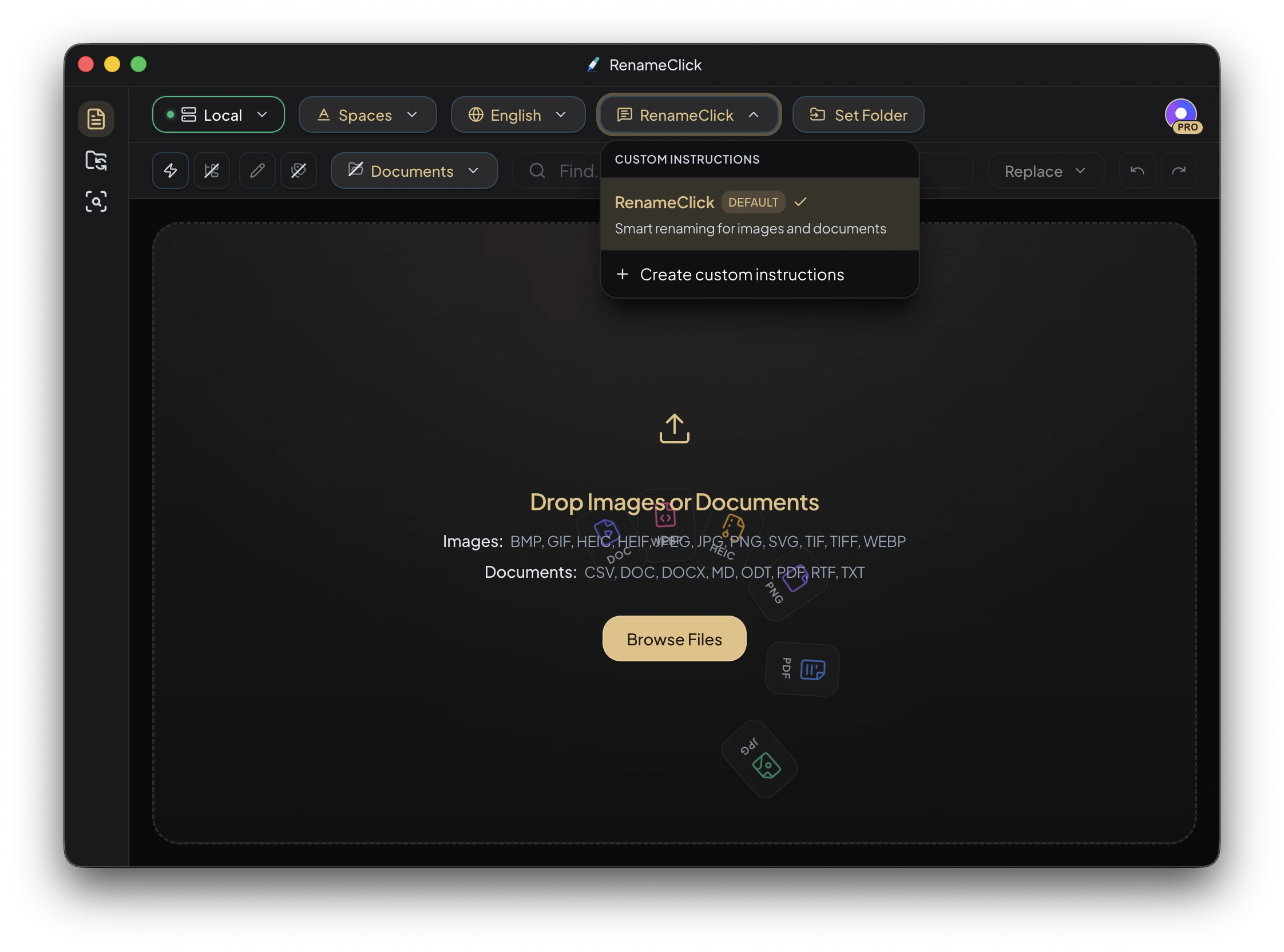
- Open the Prompt selector in Rename settings.
- Choose Create Custom Instructions.
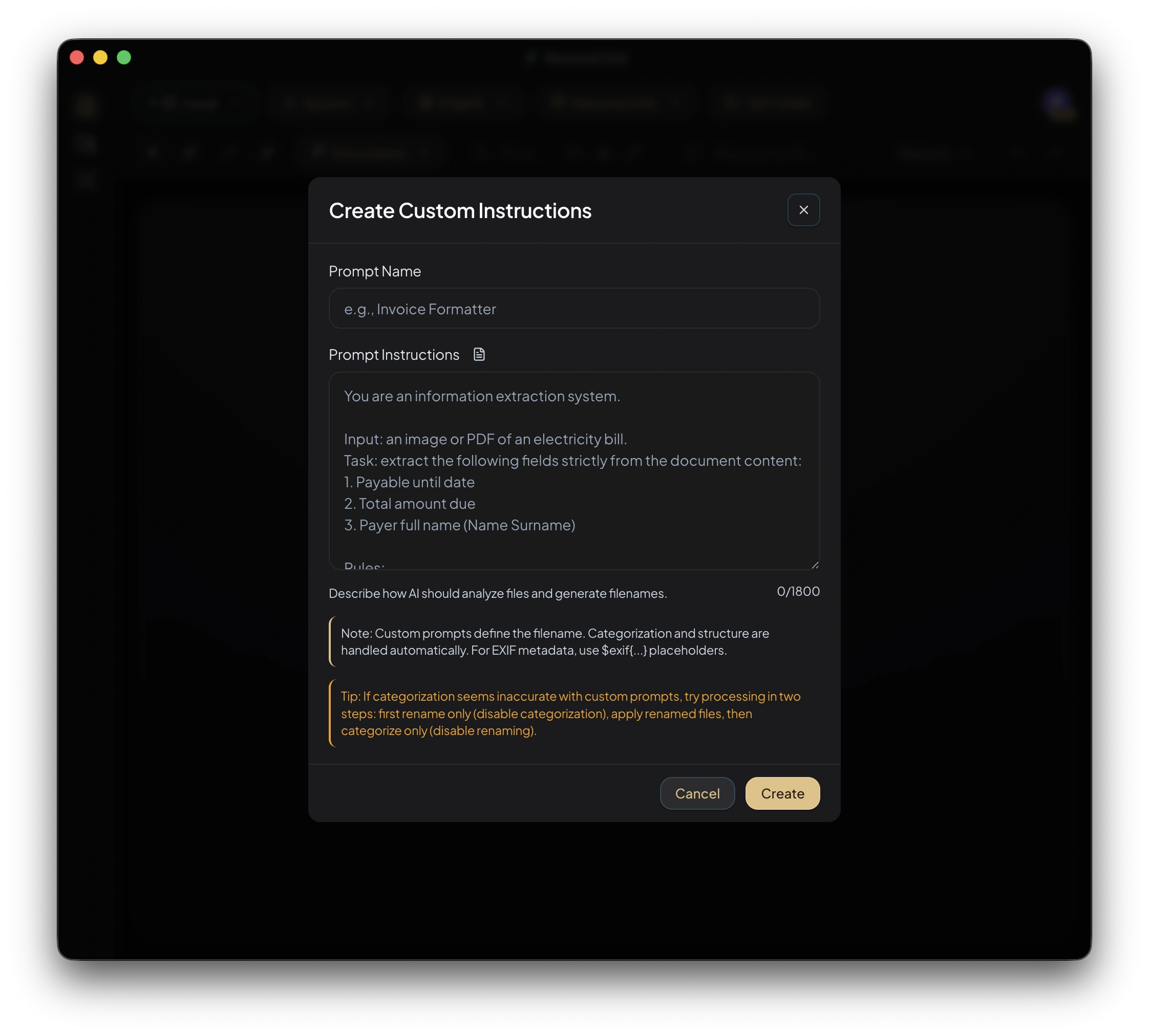
- Give the instruction a name and enter the prompt.
- Save it. The new prompt is selected for the workspace.
- Add files and run analysis. In Auto Flow, choose the saved instruction in the relevant row’s settings.
What the Prompt Controls
Specify the filename’s fields, order, separators, and language. Return the name without the extension; RenameClick preserves the extension separately. Request a fallback such as UNKNOWN when a value is absent or unclear.
Format and Output Language are disabled while a custom prompt is selected. Put those requirements in the prompt. Select the built-in RenameClick instructions again to use ordinary format patterns.
Categorization remains separate. Its sorting preset uses file content, metadata, or existing folder names; it does not derive the folder from the generated filename.
Instruction Template
This is text to enter in the editor, not a result from processing a document:
For another document type, replace the fields and specify the date you mean. An invoice may contain an issue date and a due date; “use the date” does not distinguish them.
Input and Length Limits
The default custom prompt limit is 1,800 characters, configurable from 500 to 4,000 in Local AI Settings. Increasing the limit allows more instruction text; it does not establish better accuracy.
Long document text is trimmed before analysis; lines that mention the requested fields and dates are kept. Scanned PDFs use the first page, read with the text recognition built into your operating system. A prompt cannot reliably extract a field outside the content supplied to the model. Supported-file processing.
Revise a Prompt
Check the result against the file. Edit a single unsuitable suggestion, or revise the prompt and retry when the same requirement is misunderstood across files. Remove unnecessary fields before adding more instructions. Do not treat a second pass as inherently more accurate.
Write Custom Instructions for AI File Renaming walks through choosing fields and reviewing the result.