Rename Workspace
Add files, choose naming and folder settings, edit suggestions, and apply a batch in RenameClick.
Updated Applies to RenameClick 2.17.0
Choose the Operation
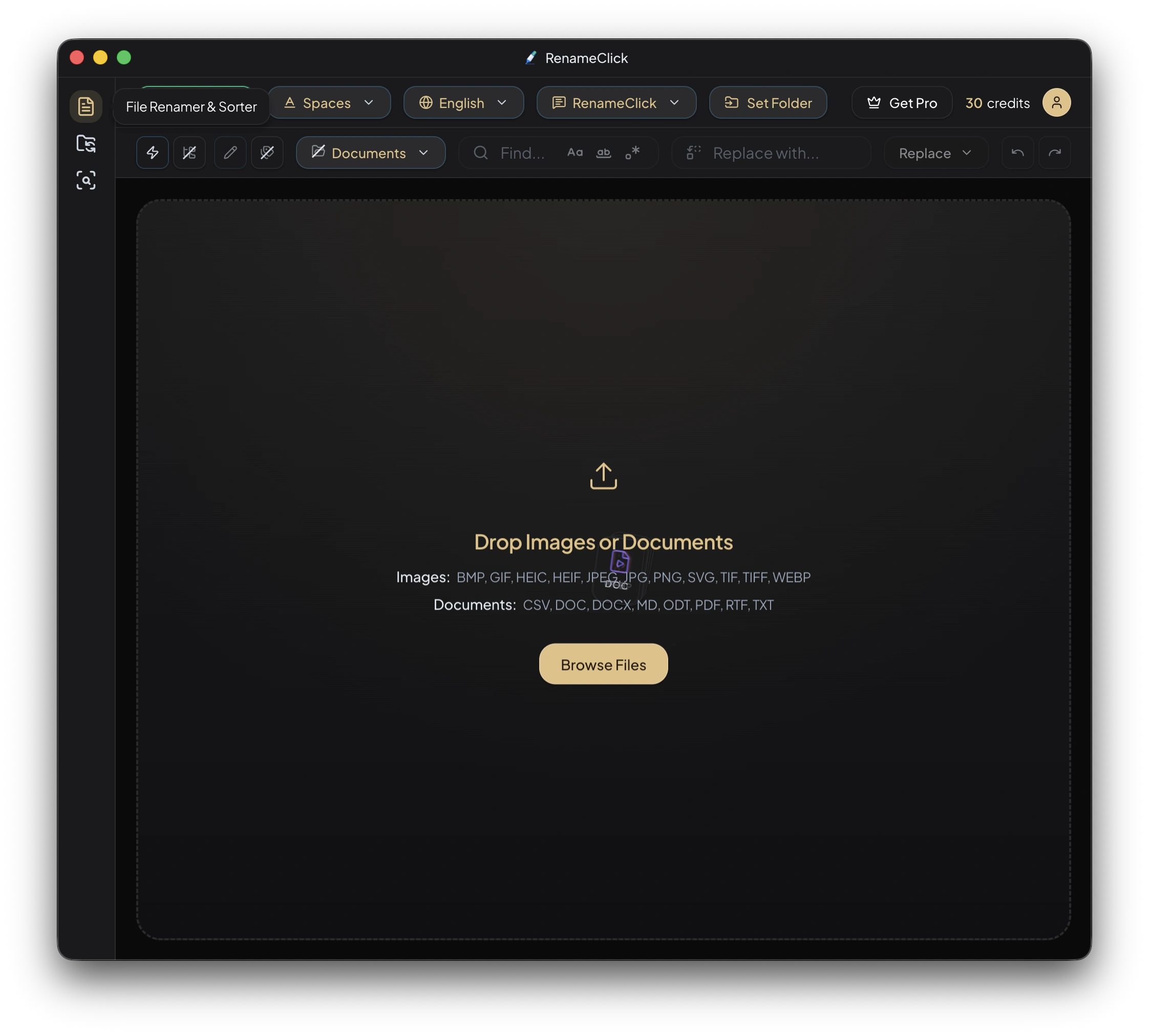
| Enabled settings | Action | Result |
|---|---|---|
| Rename | Rename Selected | Rename files in place |
| Categorize | Move to folder | Keep names and move files to selected destinations |
| Rename and Categorize | Rename & Move | Apply both changes |
Select the provider in AI & Models. For names, choose built-in instructions with a Format and Output Language, or a custom instruction that defines the complete name. Format and Output Language are disabled with a custom prompt, in both Rename and Auto Flow.
For folders, select a sorting preset and destination. Categories explains the three preset types.
Adding Files
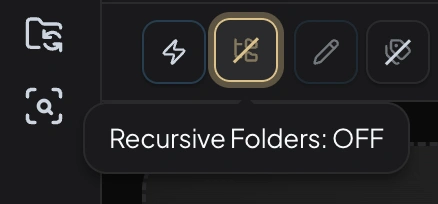
Drop files or folders, use Browse, or send a selection from the Finder/File Explorer context menu. Unsupported extensions are skipped. Use the file-type filter to control which supported files enter the batch.
Folder drops include direct files by default. Enable Recursive to include subfolders. The Batch File Limit defaults to 30,000 and can be increased to 500,000 in Local AI Settings; this is an intake limit, not a speed estimate.
Processing
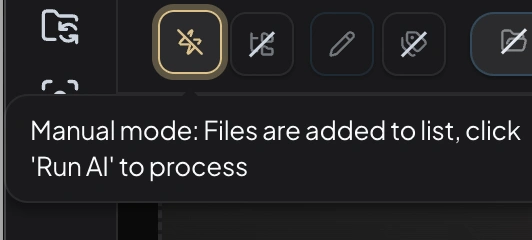
Auto Process on starts analysis as files are added. With it off, click Run AI after preparing the batch. Processing runs sequentially; stop it when needed and retry files after correcting settings or errors.
| State | Meaning |
|---|---|
| Pending | Waiting for processing |
| Processing | Being analyzed |
| Completed | A suggestion is ready |
| Failed | Processing failed; inspect the error before retrying |
| Unchanged | The proposed name matches the original |
| Cancelled | Processing was stopped |
Documents provide available text; images and scanned PDF first pages are analyzed visually. Audio requires Audio Transcription and a naming provider. With Local AI selected, install both local capabilities for audio. Content and format limits.
Reviewing Results
The results show original and proposed filenames, a category when enabled, and file/status information. The statistics bar summarizes processed files, size, and processing time for that batch.
Click a suggested name to edit it. Find & Replace changes text in suggestions, with Match Case, Match Whole Word, and Regex options. You can replace one match or all matches. Check identifiers and dates after an edit.
Uncheck rows that should stay unchanged. Retry failed files separately from files that produced a plausible but unsuitable suggestion.
What the AI saw on a result row shows the text and image that were used for that file, so you can check what a suggestion was based on. The text can be copied.
Applying Changes
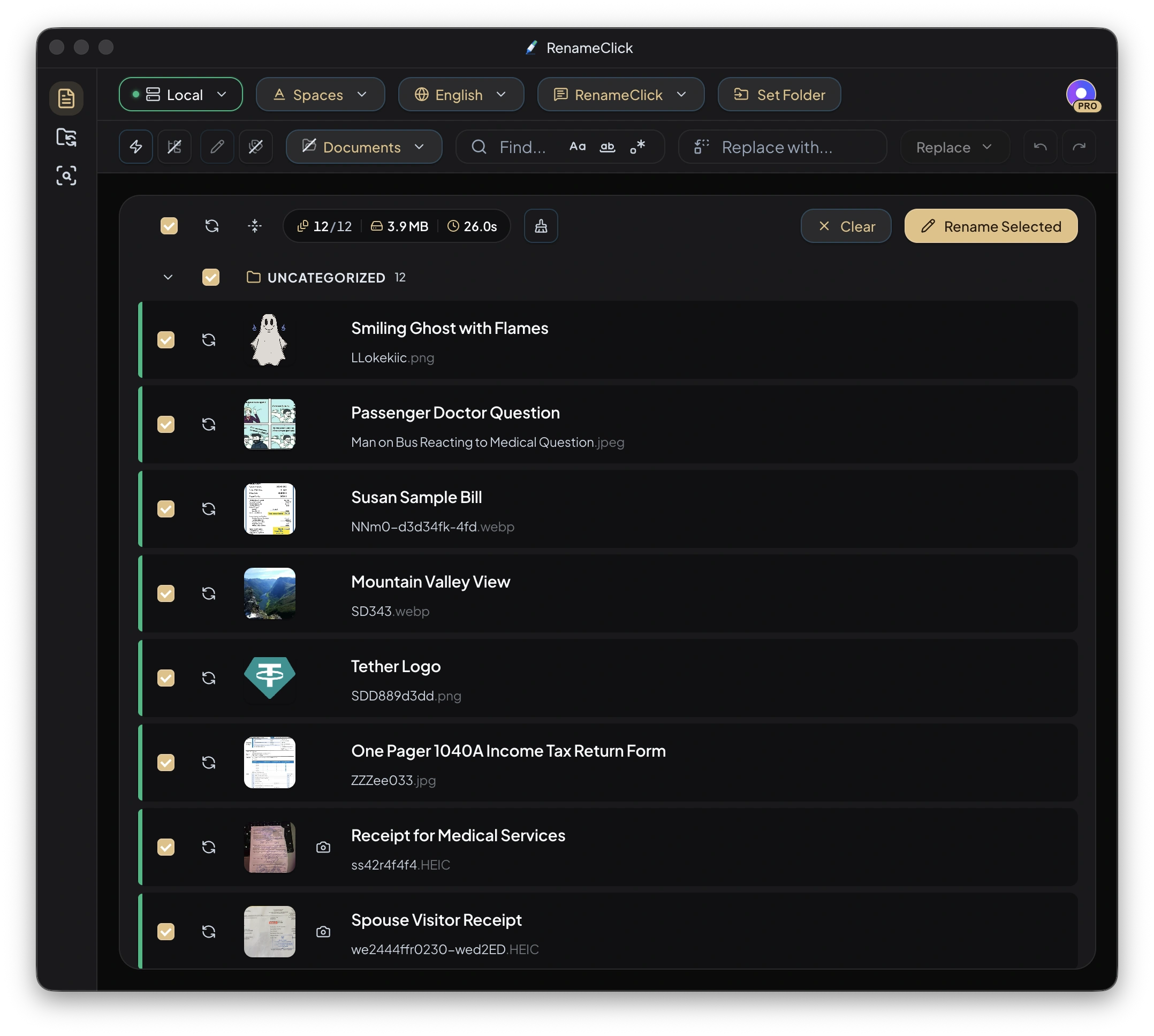
Select the rows and use the action for your enabled mode. Analysis and editing suggestions do not rename files on disk.
- Extensions are preserved.
- Invalid filename characters are sanitized.
- Conflicting target names are made unique with suffixes.
- Clear workspace after apply controls whether applied results are cleared from the workspace.
One successfully changed file uses one apply credit, including an action that both renames and moves it. Failed apply operations are not charged. See credits and plans.
Undo / Redo

Undo restores names and locations from an applied operation; Redo reapplies a reverted operation. Rename workspace history is limited to 10 entries in memory and clears on app restart. Files must still be available for the operation to succeed. This history is not a replacement for retaining a needed earlier copy.
Next Steps
For folder organization, compare AI Categories, Metadata Folders, and Match Folders.