Context Menu Integration
Send selected files from Finder or File Explorer to RenameClick and resolve missing right-click actions.
Updated Applies to RenameClick 2.15.2
macOS Finder
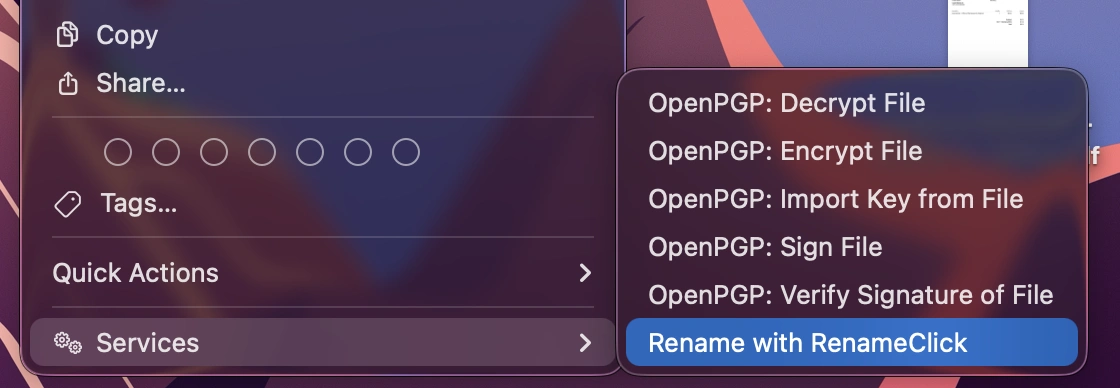
- Select files or folders in Finder.
- Open the right-click menu and look under Quick Actions or Services.
- Choose Rename with RenameClick.
- Check the received files in the Rename workspace.
The app installs and updates its Quick Action when the integration is enabled. If it is missing, launch RenameClick and check the context menu setting, then the macOS extension/Quick Action settings. macOS labels and locations can vary by version.
Windows File Explorer
Select files or folders and choose Rename with RenameClick. On Windows 11, also check Show more options if the action is not in the first menu.
Installation controls depend on the Windows package: a packaged extension can be managed by the app package, while other installations use an app-managed integration. A setting that is not available in your channel does not require manual registry editing. Restart the app after installation and check its integration status.
Files and Folders
Selections can contain several files, folders, or both. RenameClick filters unsupported files during intake. Check the resulting batch and the Recursive setting before processing subfolders.
If the app is closed, the action opens it and delivers the selection when the workspace is ready. If it is already open, the window is brought forward. Model availability and processing settings still apply.
If the Selection Does Not Arrive
Launch the installed app directly and try the action with a small selection. Check that the selected files are locally available and supported. For cloud-synced files, download their contents first if they are placeholders.
Use Browse or drag and drop as another way to add the same files while resolving the integration. Report the operating system, app version, installation channel, and observed message to support. Do not include private file contents unless you intend to share them.