
Folder organization
AI File Organizer for Mac and Windows
Move documents, images, and other supported files into folders chosen by content, metadata, or your existing folder names. Keep filenames or rename them at the same time.
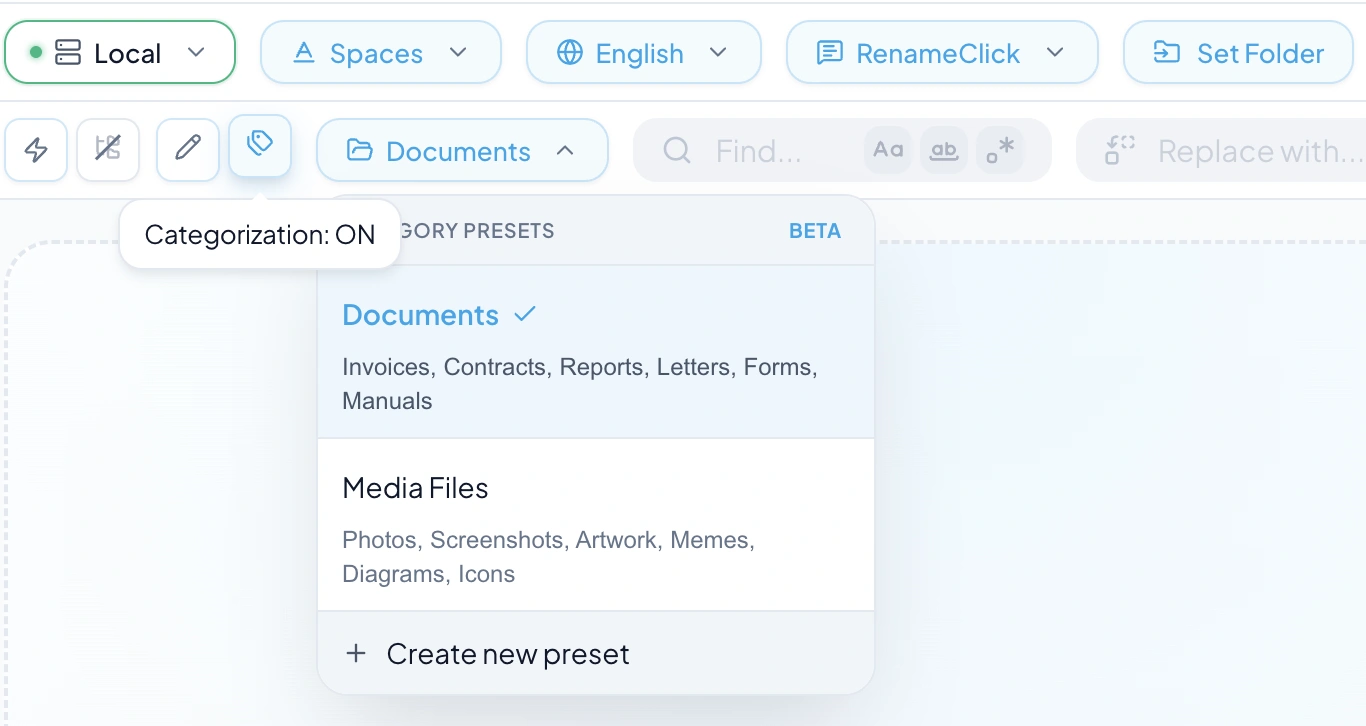
- Three ways to choose a folder
- Move only, or rename and move
- Local AI available on Mac and Windows

Choose the folder rule first. Check the proposed destinations before applying a batch.
Before and after examples
| Original | Suggested name | Suggested folder |
|---|---|---|
Scan_0021.pdf | 2026-03-14_acme-supplies_invoice_1187.pdfRename and Categorize together with AI Categories. One changed file uses one apply credit. | Documents/Invoices |
IMG_4471.HEIC | IMG_4471.HEICMetadata Folders from the EXIF capture date, with Rename off so the name stays. | Photos/2026/07 |
northwind_agreement_v2.pdf | northwind_agreement_v2.pdfMatch Folders chose an existing client folder in the destination. | Clients/Northwind |
Choose how the destination is decided
| Method | What decides the folder | Use it when |
|---|---|---|
| AI Categories | AI selects from a preset list using file content | You need document types or other meaningful categories. |
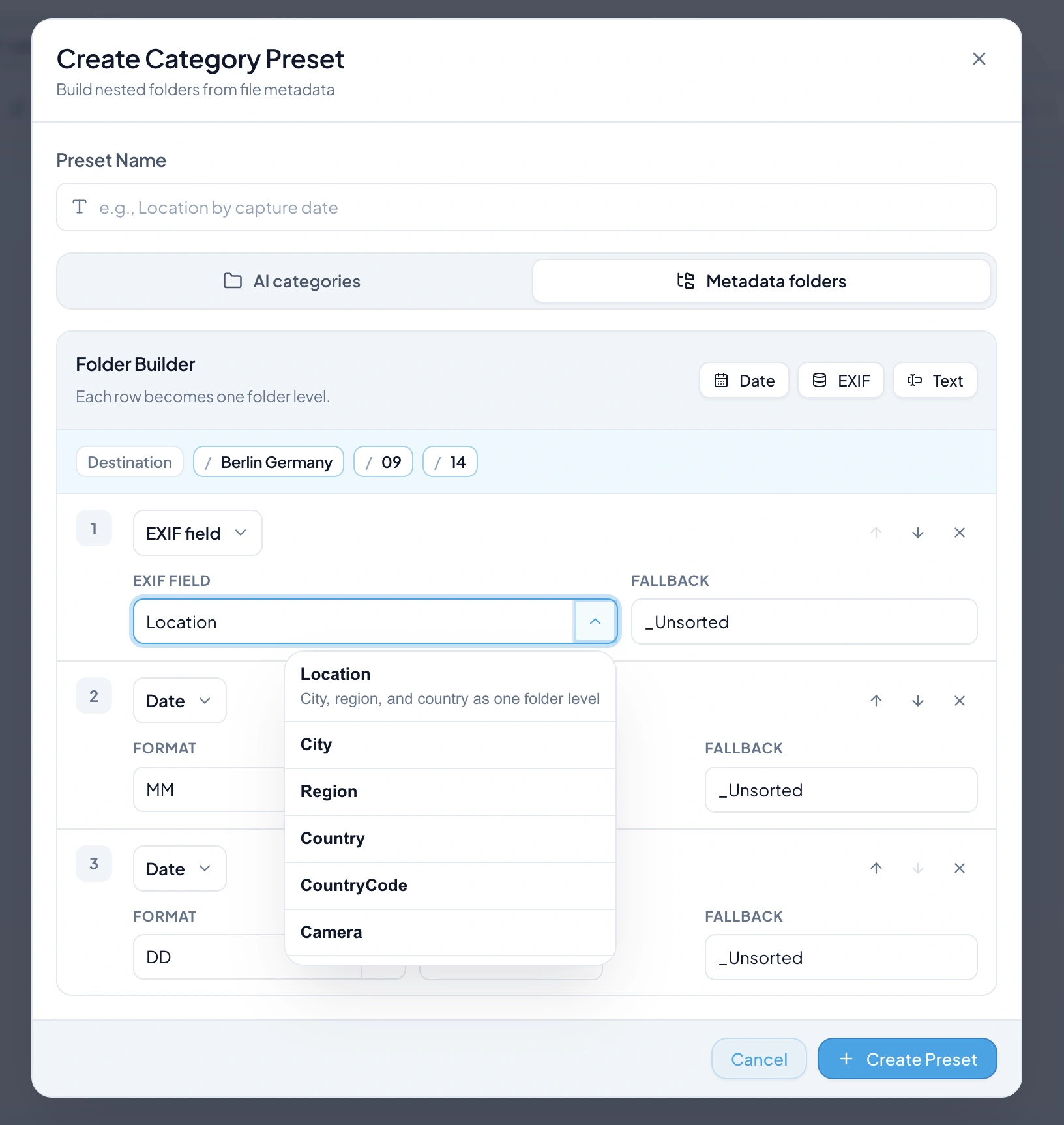
| Metadata Folders | Date, EXIF, and fixed text form the path | You need folders based on recorded values. |
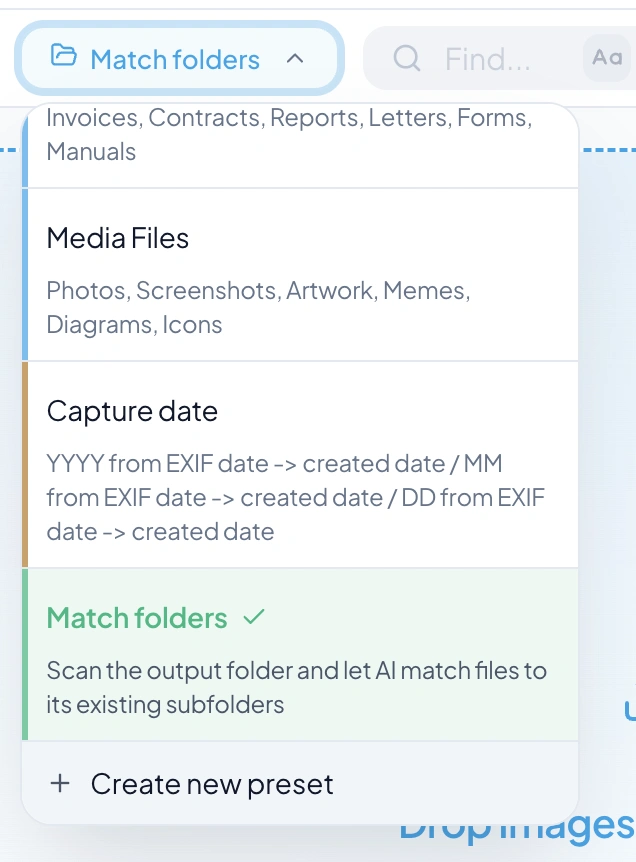
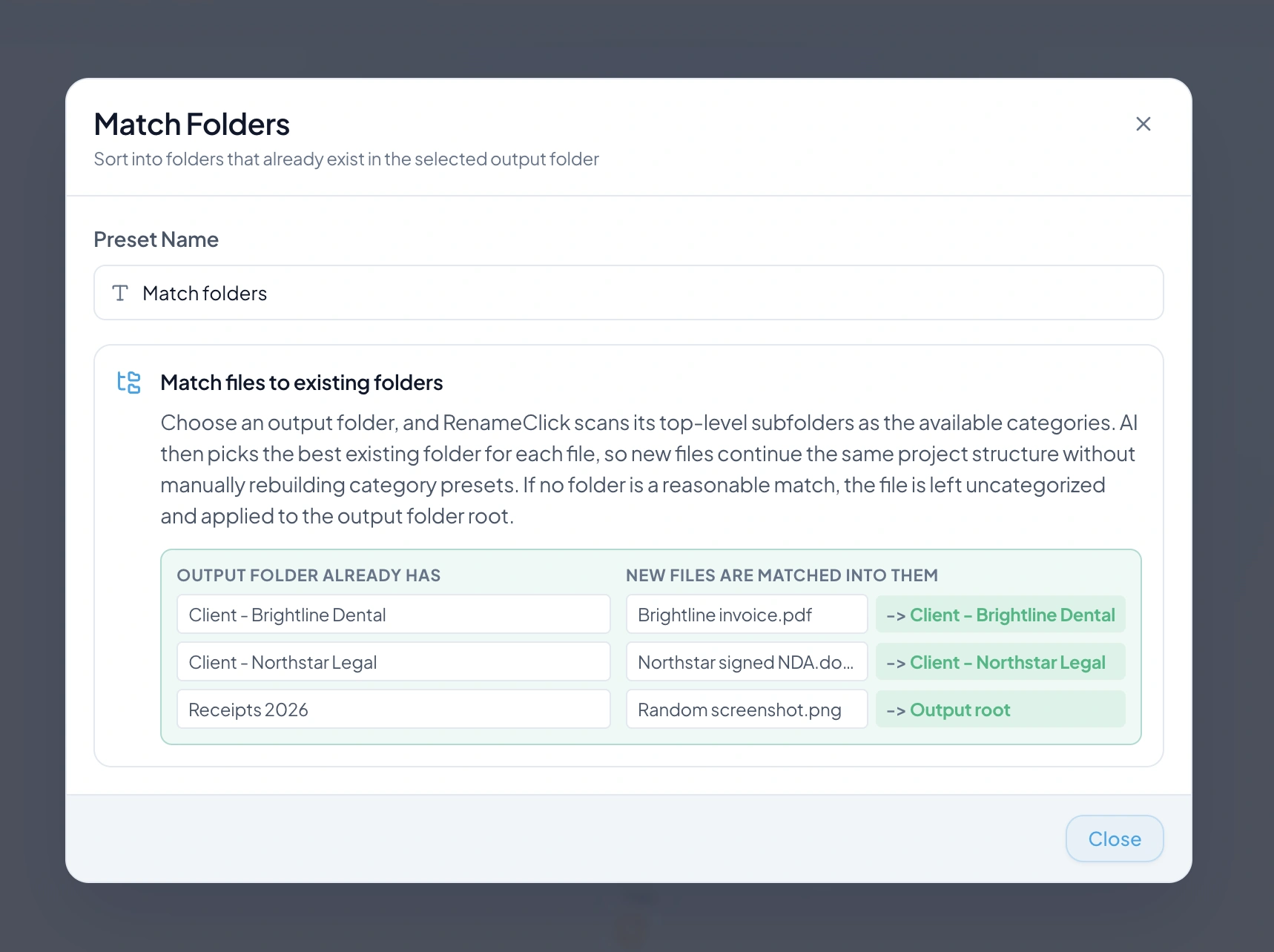
| Match Folders | AI selects an existing top-level destination folder | You already have client or project folders. |
A first batch, step by step
Start with a folder whose files you can check. The examples above are illustrative; the folder each file receives depends on your preset and on the file content.
- Enable Categorize and choose a sorting preset. Leave Rename off if the names should stay.
- Drop the folder. Enable Recursive only if the subfolders belong in the same batch.
- Inspect the suggested folder for each row and deselect anything that should stay where it is.
- Apply the selected rows. Undo is available in the Rename workspace if a destination was wrong.
Give similar categories a clear description
Start with a built-in AI preset or create your own categories with short descriptions. Explain what distinguishes Invoices from Receipts, for example. Category selection uses file content independently of naming instructions.
Build folders from metadata
Each Metadata Folder Builder row adds a level to the path. Choose the date source deliberately: capture date, file creation date, and modification date can differ. Set fallback folder names for absent EXIF values.
Use the folders you already have
Match Folders reads up to 50 top-level subfolder names in the destination. It does not learn an entire archive or invent extra folders. With a separate destination, unmatched files are applied at its root; deselect them if they should stay at the source.
Choose what changes on disk
Enable Categorize without Rename to keep the current names. Enable both to rename and move. Add your files, inspect destinations, and apply the selected rows. Folder drops include direct files by default; enable Recursive for subfolders.
Analysis does not use RenameClick credits. Free includes 100 renames or moves each month. Renaming and moving one file in the same action uses one credit; failed changes use none. Pro removes the apply limit. External API charges are separate.
Use a watched folder for recurring intake
An Auto Flow row can reuse your sorting preset and process incoming supported files while RenameClick runs. Watch queues files; Auto Apply decides whether the row applies its suggestions automatically.
See the workflow in RenameClick
FAQ
Can I organize files locally?
Choose Local for on-device analysis after downloading its model. Optional cloud providers in the direct macOS and Windows builds use your API key and receive content for analysis; their charges are separate. The Mac App Store build excludes cloud providers.
Does RenameClick move files without asking?
No. In the Rename workspace, analysis produces suggested destinations, and files move only when you apply the selected rows. Auto Flow applies changes automatically only when Auto Apply is enabled for that rule.
Can it organize my Downloads folder on its own?
Yes, with an Auto Flow rule that watches Downloads while RenameClick is running. Filter the files you want, choose Move or Copy, reuse a sorting preset, and keep Auto Apply off until you have checked the first results.
Which method should I start with?
Use AI Categories when folder names describe document types or topics, Metadata Folders when dates or camera data define the structure, and Match Folders when the client or project folders already exist. One rule uses one method; connect Auto Flow rules to combine them in stages.