
On this page
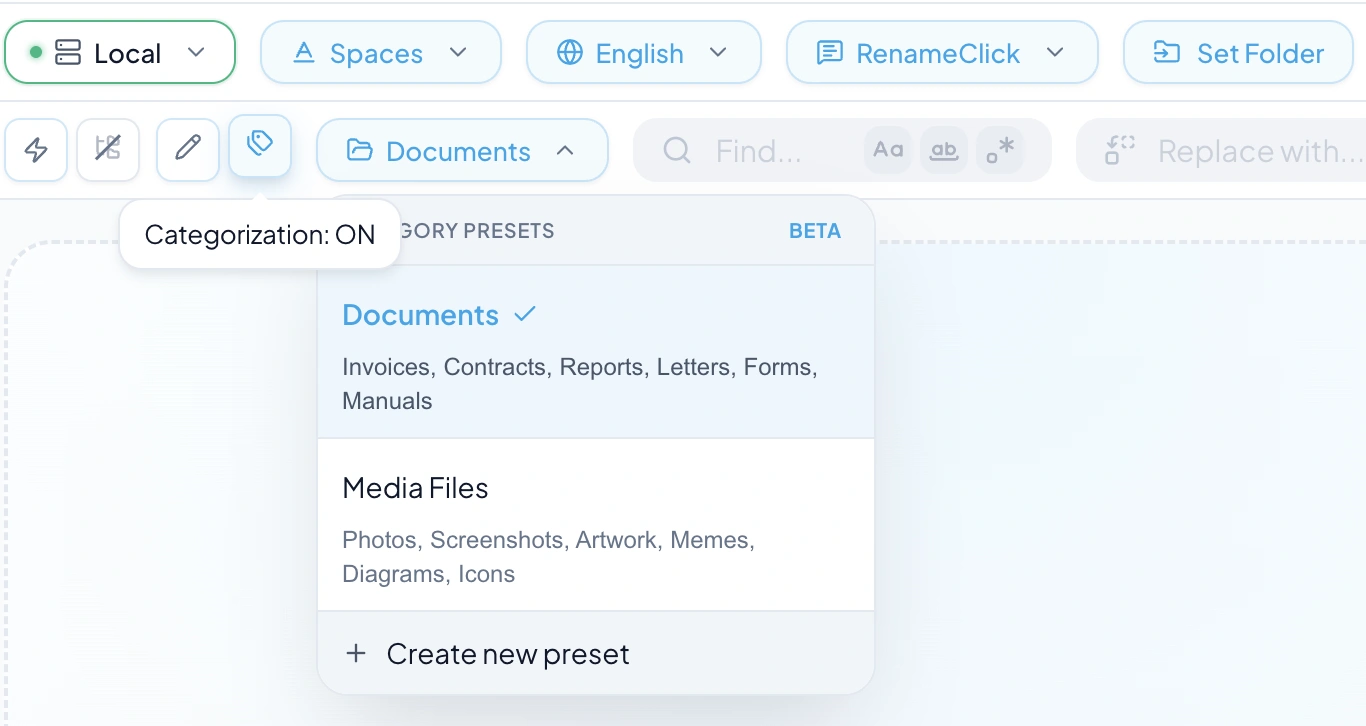
Choose the folders you need
Use AI Categories when the destination depends on a document’s contents. RenameClick can distinguish an invoice from a contract using the available text or scanned first page, then choose from the categories in your preset.
Start with the Documents preset or create your own. Include categories you actually use when retrieving files. There is no required category count; a small, distinct set is easier to inspect than several nearly identical choices.
Use Match Folders if you already have a suitable set of client folders. Use Metadata Folders if the destination should follow a date or another saved field.
See document organization options for the full reference.
Explain the difference between similar categories
Create a custom AI Categories preset and give each category a short description. Explain which documents belong there and what distinguishes it from neighboring categories. Built-in presets are view-only.
| Category | Example description to enter |
|---|---|
| Invoices | Requests for payment that identify the supplier and amount due. |
| Receipts | Proof that a purchase or payment has been completed. |
| Contracts | Agreements between named parties that set out terms or obligations. |
These descriptions are instruction examples, not tested classification results. A receipt attached to an invoice can still be ambiguous. RenameClick does not verify whether a bill has actually been paid.
Analyze the documents
- Enable Categorize in the Rename workspace.
- Select the saved preset and destination.
- Leave Rename off if you want to keep the current names.
- Add supported documents. Enable Recursive only if subfolders should be included.
- With Auto Process off, click Run AI to start.
Category selection is independent of naming. A custom naming prompt can ask for an invoice number without changing which category receives that file. For scanned PDFs, the first page must contain enough information to make the distinction.
Resolve ambiguous results
Check the suggested destinations. If two categories overlap, clarify their descriptions and retry affected files. If the relevant evidence is absent from the analyzed content, changing category wording cannot supply it.
A file that matches no category may remain uncategorized. In a separate destination workflow, it is applied to the output root. Deselect it if you prefer to leave it at the source.
Do not treat a category name as a validated business status. An invoice placed in Paid is still a document that needs whatever payment checks your work requires.
Move the selected files and reuse the preset
Apply the selected moves after checking the destination. If Rename is also enabled, Rename & Move applies both changes; one successfully changed file uses one apply credit.
Saved presets can be selected for later batches and Auto Flow rows. Export Settings can transfer presets to another computer, but machine-specific paths and provider credentials need separate setup.
See category settings for the full reference.
See exporting settings for the full reference.