
Folder automation
AI File Sorter with Auto Flow
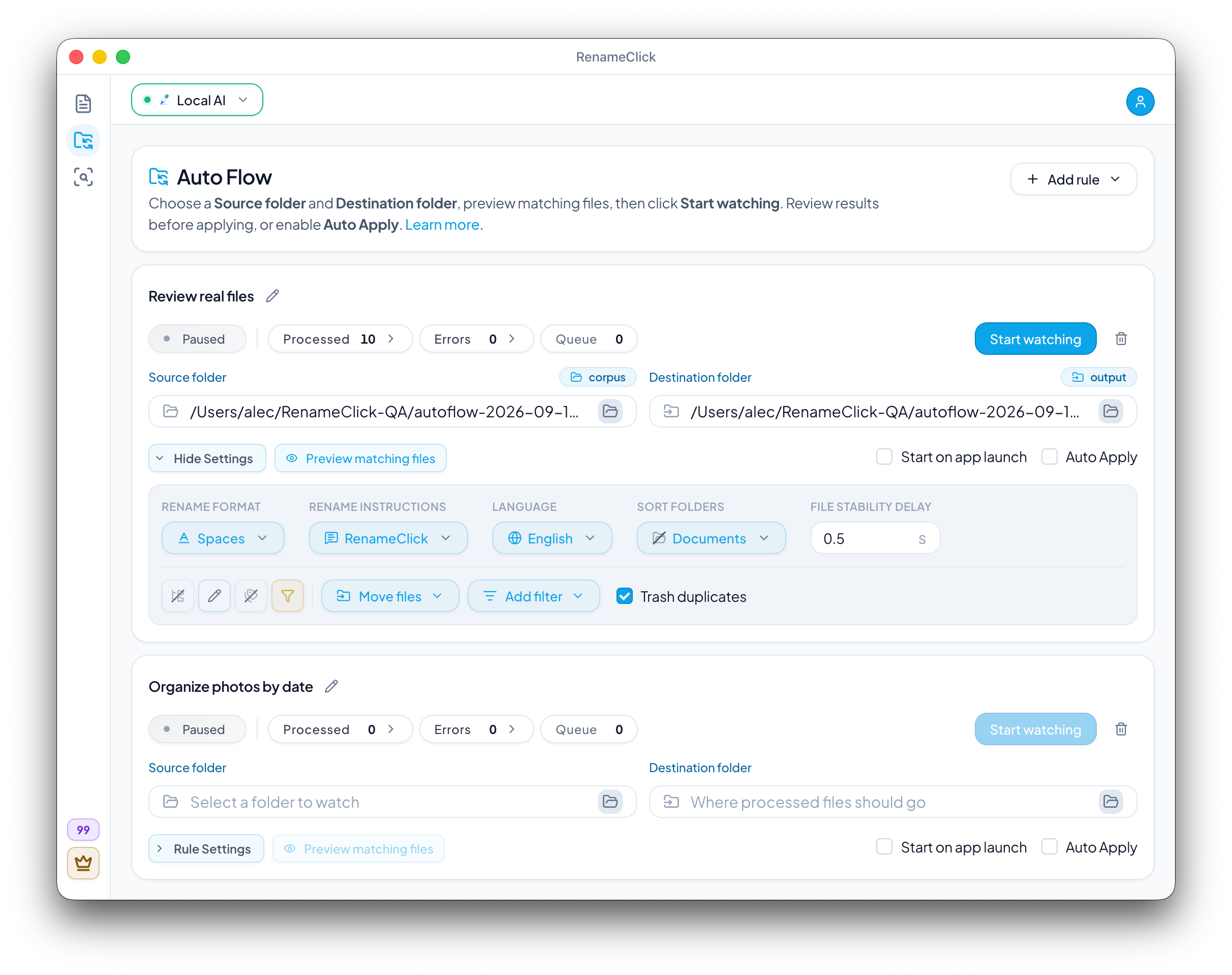
Watch Downloads, Scans or any folder, filter incoming files, and move or copy them where they belong. Add AI renaming or sorting when you need it, and review changes before applying them.
- Filters for each rule
- Move or copy, with or without AI
- Preview before applying

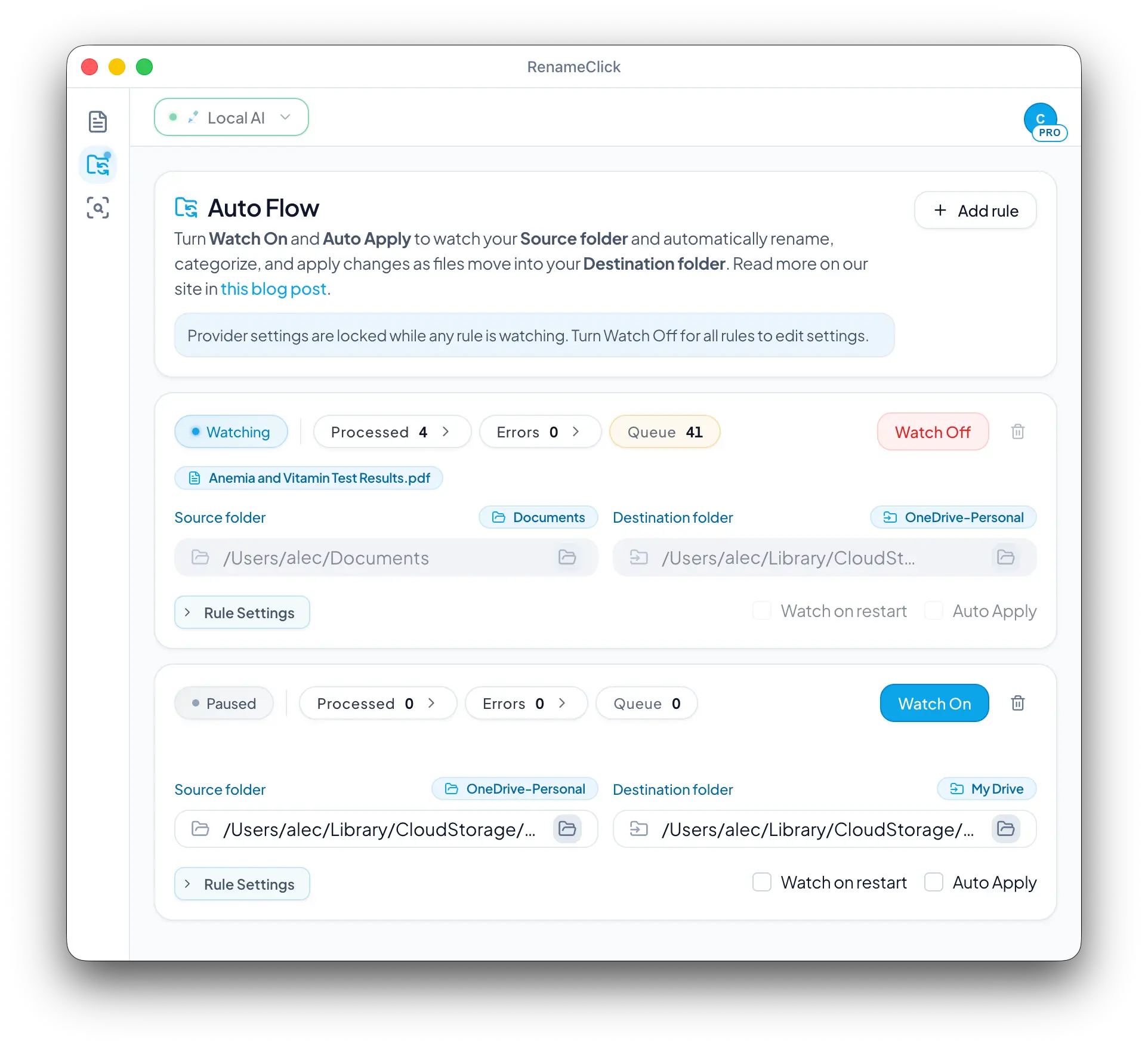
Auto Flow works while RenameClick is running. Each rule has its own folders, filters, and Auto Apply setting.
Before and after examples
| Original | Suggested name | Suggested folder |
|---|---|---|
Scan_0021.pdf | 2026-03-14_acme-supplies_invoice_1187.pdfDownloads rule: PDF filter, Custom Instructions for the name, AI Categories for the folder. | Documents/Finance/Invoices |
IMG_2210.HEIC | IMG_2210.HEICPhoto rule: Metadata Folders by capture date, Rename off. | Photos/2026/05 |
Screenshot 2026-09-10 at 14.02.11.png | auto-flow-rule-settings-dialog.pngScreenshot rule: Copy keeps the original in place. | Notes/Screenshots |
Start with a rule that fits the folder
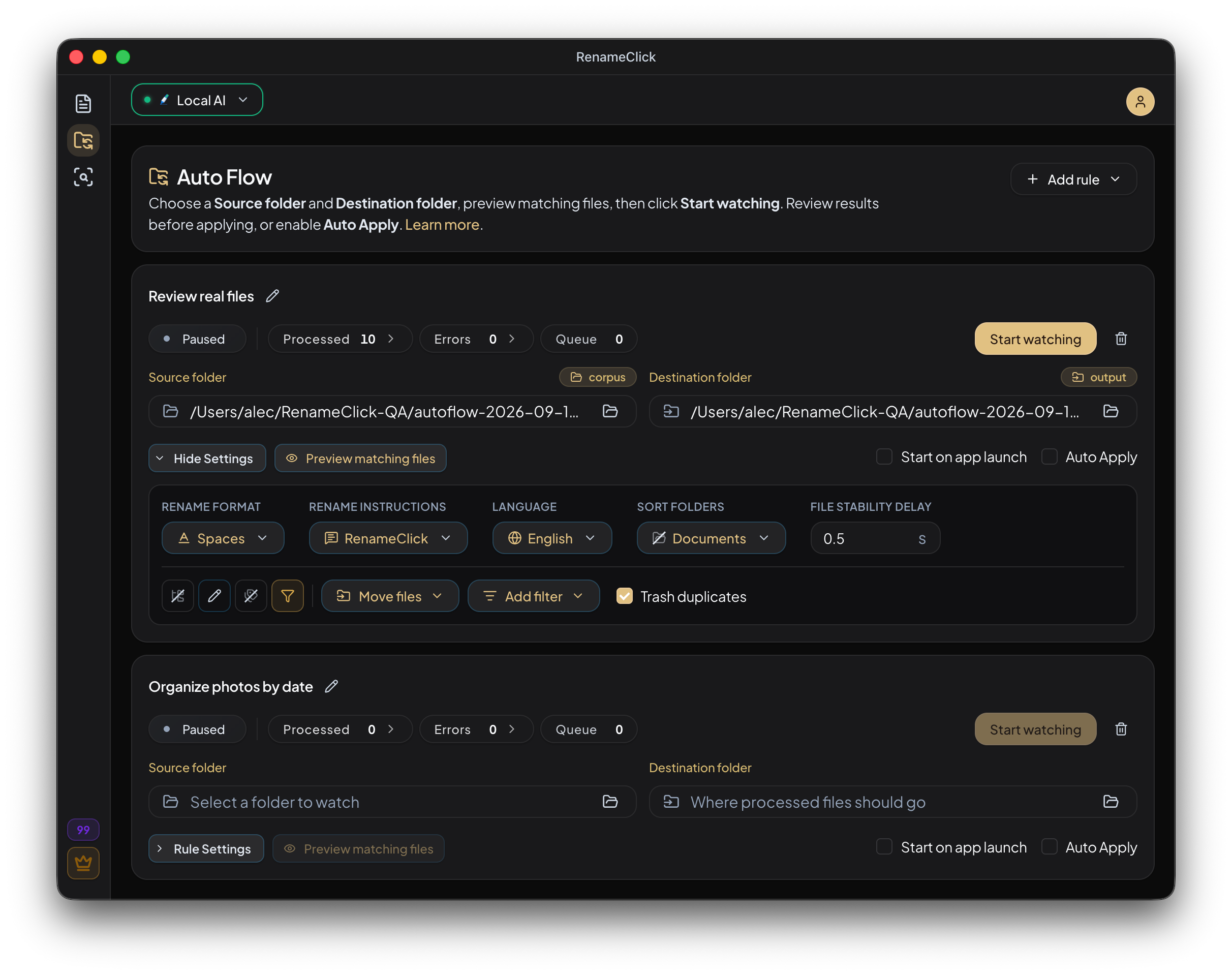
Choose a blank rule or a recipe for documents, photos, or document copies. Give it a name and select the source and destination. Each rule keeps its own settings.
Give Downloads its own rule
Downloads collects installers, PDFs, photos and archives that need different treatment. Give the folder one rule per file family instead of one rule for everything: PDFs whose names contain Invoice can move to your document folders with AI Categories, while other downloads stay where they are. Unsupported formats are left alone.
Auto Flow reads the complete file, allows cloud placeholders to download, then waits for the file to remain stable for the chosen delay before processing it. Increase the delay for downloads that arrive in stages, and keep Auto Apply off until you have reviewed the first batch.
- Add a rule, name it, and select Downloads and a destination folder.
- Choose file types and filters, then Move or Copy. Preview matching files to check what the rule includes.
- Start watching with Auto Apply off, review Processed, then apply the files you choose.
Choose which files are included
Filter supported files by type, text in the filename, size, or how long ago they were modified. All conditions must match, and name filters are case-sensitive.
Preview matching files shows a sample and explains which files pass or fail. It does not run AI or change anything on disk.
Move, copy, rename, or sort
Move files out of the source folder, or choose Copy to keep the originals. You can rename them, sort them into folders, or turn both features off for a plain transfer without AI or apply credits.
Copy avoids creating another copy of an unchanged original. If identical content already exists at the intended destination, that file is skipped.
Check the results before applying
Start watching with Auto Apply off. Review the proposed filenames and destinations in Processed, then apply the files you choose. Enable Auto Apply when you want the rule to apply future results automatically.
Stop watching before Undo or Redo. Undo reverses a move or removes the copy created by that operation; it does not remove the source original.
Remove exact duplicates only if you choose
Trash duplicates is off by default. It compares matching files in the source folder, keeps one file from each set of identical contents, and sends extras to the system Trash. The remaining file follows the rule’s Move or Copy action. Similar photos and files that only share a name are not treated as duplicates.
From 2.16.1 onward, stop watching to Undo or Redo new duplicate cleanup operations. Undo requires the unchanged file in Trash, its saved Applied record, and a free original path. Clearing the record removes app recovery; older records can be restored through the system Trash or Recycle Bin.
Keep RenameClick running
Auto Flow scans existing eligible files when you start watching, then handles arrivals after the file stability delay. Each rule can start watching when the app launches. It does not run while the app or computer is off.
See the workflow in RenameClick
FAQ
Can I connect more than one rule?
Yes. Use one rule’s destination as another rule’s source. Applied files can continue to the next stage. The order of rules on screen does not set processing priority.
Can a folder sort files into its own subfolders?
Yes. Use the source folder as the destination. With Rename on, files are renamed where they are. With Sort on, they move into subfolders of that folder; Match Folders picks among up to 50 existing top-level folders and leaves unmatched files in place with an error. Subfolders are excluded from scanning, and files the rule already handled are not processed again.
Do I need an AI provider?
Plain Move and Copy work without AI. For content-based names or sorting, choose Local after installing its model, or an available cloud provider. Cloud API charges are separate.
Can Auto Flow clean up my Downloads folder automatically?
Yes. A rule that watches Downloads moves or copies matching files while RenameClick is running, with or without AI. Plain transfers use no apply credits. Trash duplicates is optional and off by default.