On this page
Choose how you want to browse the archive
Use date folders when you remember when a photo was taken. Use named event or project folders when that context matters more. RenameClick can build folders from saved metadata or choose among categories, but it cannot recover an event date that is absent from the file.
A Year / Month structure is a possible metadata preset, not a universal rule. Avoid adding location levels when much of your collection has no GPS data.
Check capture dates and fallbacks
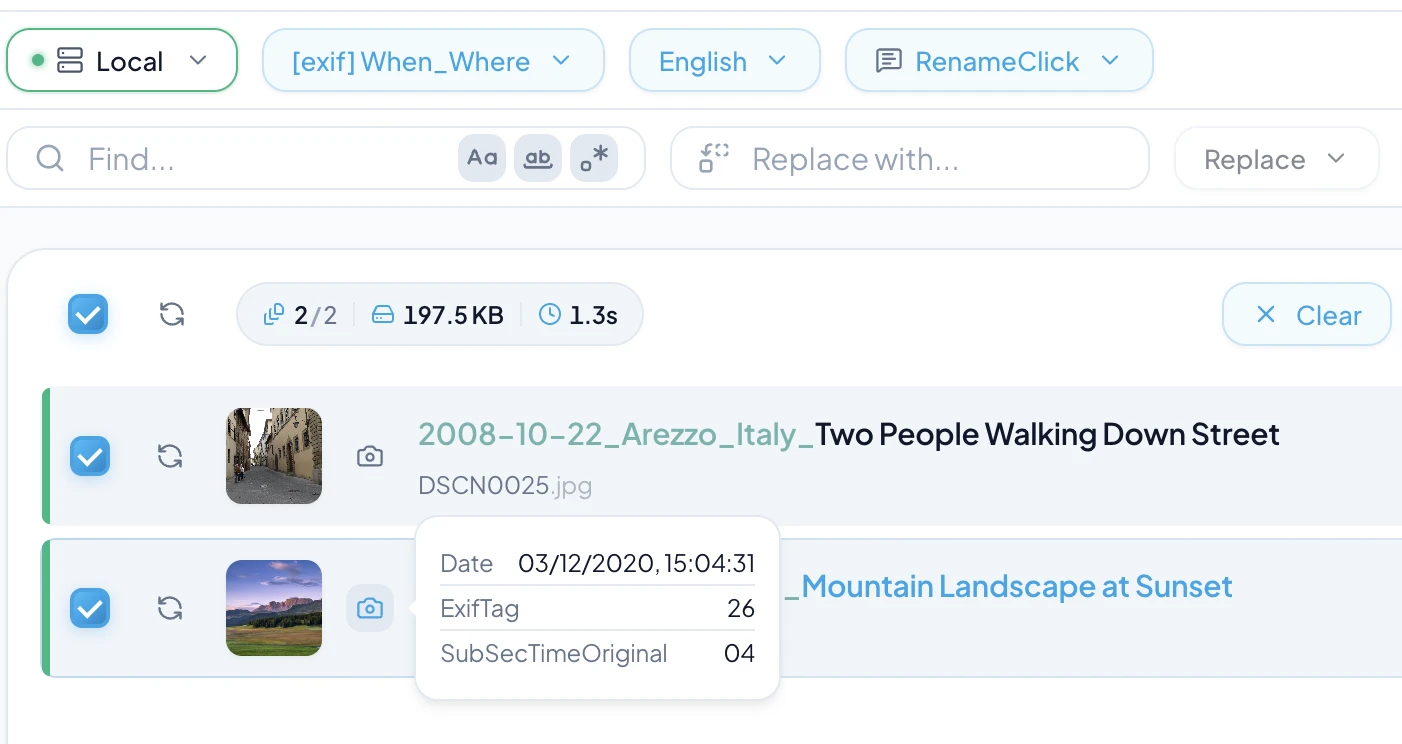
Camera photos may contain EXIF capture dates, camera details, and GPS coordinates. Screenshots, scans, edited exports, and messaging-app copies may not.
In Metadata Folders, EXIF → Created uses capture metadata when available and falls back to the file creation date. That fallback can be the date of an export or copy. Use an explicit fallback name for other missing fields so they are easy to find.
A visible landmark is not proof of an exact shooting location. Do not describe AI-generated place names as recovered GPS metadata.
See building date and EXIF folder levels for the full reference.
Keep useful camera IDs
If your current names link to edits, orders, or another catalog, keep the useful identifier. $oldName includes the original stem without the extension; $1 inserts the AI description.
$oldName_$1This is a format template. Inspect whether an original name already contains a description or date before appending another. Mixed import sources may need separate presets.
See keeping selected parts of an original name for the full reference.
Name a selected group of photos
- Open Rename and select the image file types you want to include.
- Keep Categorize off while choosing your naming format.
- Add photos and inspect the suggested descriptions.
- Edit names that mistake an object or place, and deselect uncertain results.
- Click Rename Selected when the names are ready.
Use Slug Case or $slugcase{$1} for lowercase words separated by hyphens. $lower{$1} alone leaves spaces. RenameClick preserves extensions and does not edit image pixels.
The app does not identify people, remove duplicate photos, or maintain a backup. Keep those tasks in the tools and procedures you already use.
Move photos into the chosen structure
Enable Categorize and select a Metadata Folders preset for date or EXIF paths. Use Categorize only to retain the names, or Rename + Categorize to apply both changes.
Inspect destinations for photos without metadata before applying. For recurring imports, select the preset in an Auto Flow row and start with Auto Apply off.
See photo renaming features for the full reference.
See folder preset settings for the full reference.