
On this page
Install the two local capabilities
RenameClick names spoken recordings in two stages: Audio Transcription turns speech into text, then the naming model uses that text to suggest a filename. Install both capabilities for the complete local workflow.
- Open AI & Models in RenameClick.
- Install RenameClick Local AI and Audio Transcription.
- Choose Local AI as the naming provider.
- In the Rename workspace, select Audio in the file-type filter and add your recordings.
Supported formats are MP3, WAV, FLAC, M4A, and AAC. This workflow is for intelligible speech: voice notes, interviews, meetings, lectures, and podcast drafts. It is not a song-identification service. The original audio stream and file extension are preserved.
Read the suggestions alongside the recordings
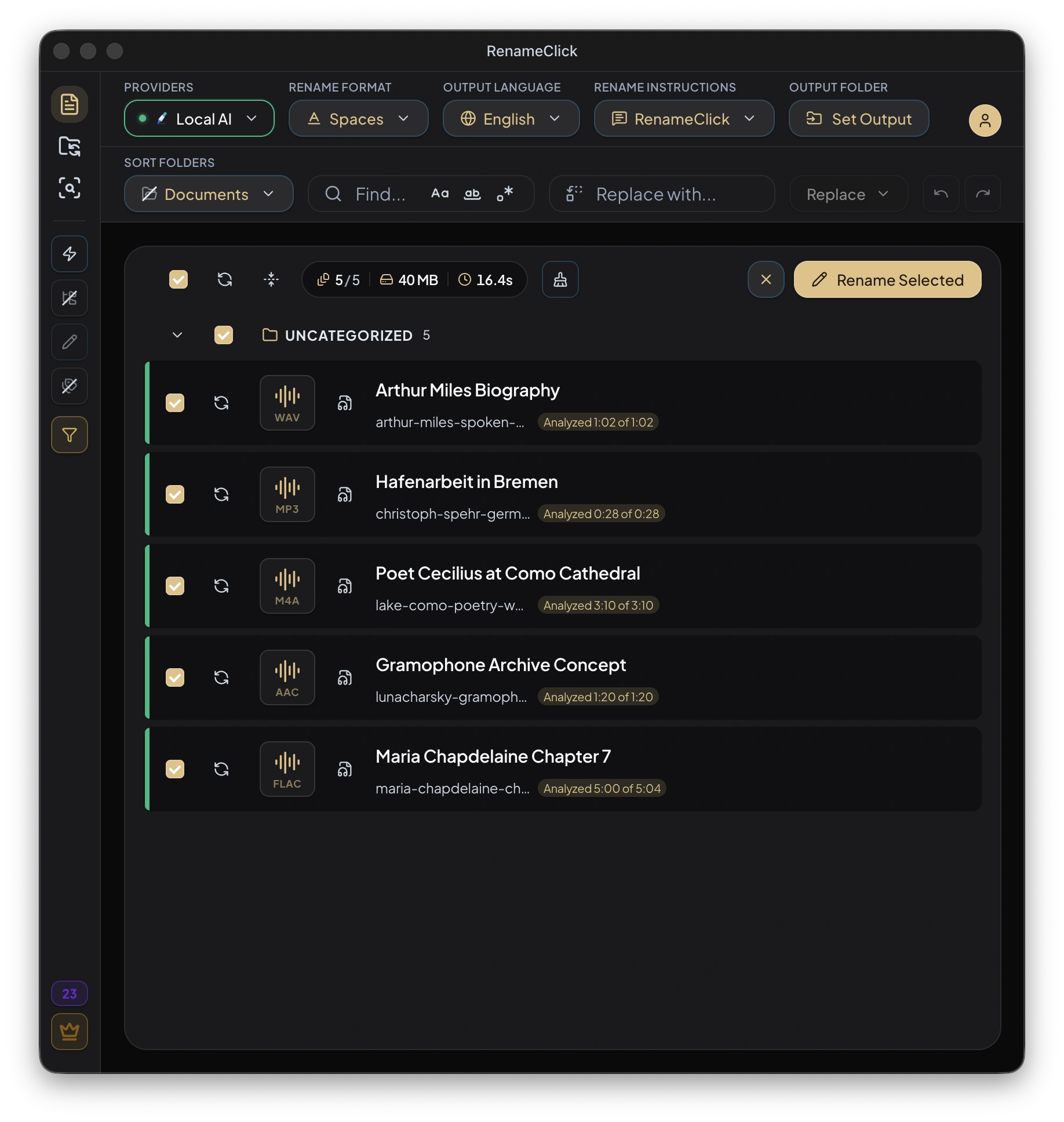
The screenshot shows Arthur Miles Biography, Poet Cecilius at Como Cathedral, and Maria Chapdelaine Chapter 7. The selected settings are Local AI, Spaces, English, and the built-in RenameClick instructions. These are the names shown in the app, not a promise that another recording will receive the same result.
Each row also reports how much audio was analyzed. The FLAC recording shows 5:00 analyzed out of 5:04. Check proper nouns and the main topic against your recording; edit a name or retry the file when the suggestion misses what matters.
Select the rows you want to rename and click Rename Selected. Leave uncertain rows unchecked. Analysis alone does not change the filenames.
Choose how much of a long recording to analyze
Short recordings are analyzed in full. For longer recordings, RenameClick samples across their duration instead of using only the beginning. Analyze up to defaults to five minutes; you can choose 30 seconds, 1 minute, 2 minutes, 5 minutes, or 10 minutes.
A short limit may be enough for a single-topic voice note. A meeting that changes topic may need more. If the name describes an introduction rather than the discussion you need to remember, increase the limit and retry.
Sampling can miss a brief but important passage. The transcript context is used for naming; this workflow does not provide a complete meeting transcript.
Choose a format or write naming instructions
With the built-in RenameClick instructions, choose the filename language and a Format preset. Spaces keeps a readable phrase; Slug Case uses lowercase words separated by hyphens. A custom format can add a file date or embedded audio tags.
$date{YYYY-MM-DD}_$1
$audio{album}_$audio{track}_$1
These are format templates. The date is the file creation date, not a date inferred from the conversation. Audio tags may be missing; they do not turn this into music recognition.
For more control over the wording, select Custom Instructions instead. State the topic, length, language, and final structure in the prompt. Format and Output Language are disabled while a custom prompt is selected.
Write an English filename of 4–8 words describing the main spoken topic. Include a person or organization only if it is clearly named in the speech. Do not guess. Return the filename without its extension.See the custom instructions guide for the full reference.
What stays on your computer
Transcription runs locally. With Local AI selected and both capabilities installed, filename generation also runs on your device. If you choose a cloud naming provider in a build that supports it, bounded transcript context goes to that provider; the recording itself is still transcribed locally.
See provider setup and data handling for the full reference.
If a file produces no useful name
- Audio is unavailable in the filter: check that Audio Transcription is installed.
- Local naming is unavailable: also install RenameClick Local AI.
- No usable speech: check for silence, music, background noise, or an unsupported codec.
- The name is too broad: increase the analysis duration or make the instruction more specific.
- A person or topic is wrong: edit or exclude that suggestion before applying.
See supported formats and processing limits for the full reference.