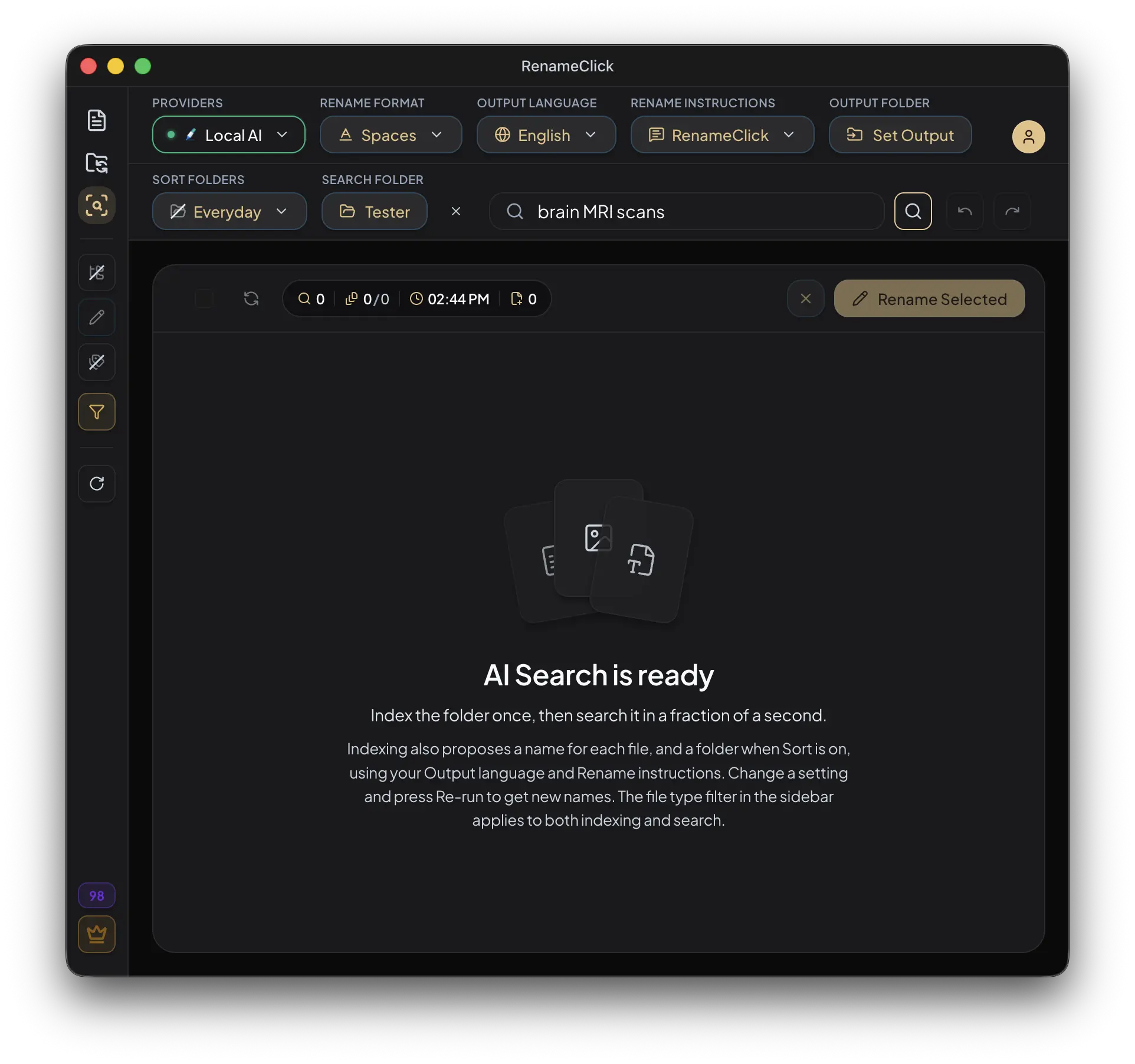
If you want to search across all your documents, filenames are usually the weak link. You remember “invoice from Amazon,” “signed contract,” or “blood test results,” not scan_9482.pdf or Document (4).pdf.
AI Search solves that problem by letting you search documents and files by content. Instead of relying on exact filename matches, it uses semantic intent, so queries like “passport scan,” “invoice from Amazon,” “signed NDA,” or “blood test results” can find relevant files across local folders and subfolders.
In RenameClick, this works as a dedicated workspace search flow with recursive scanning, live counters, match-only results, and practical row actions. It is designed for discovery first, so results are read-only by default.
If your use case is literally workspace search across all your documents, start with How to Search Across All Your Documents with AI.

Key takeaways
- AI Search finds documents and files by semantic intent, not exact filenames.
- You can search one folder or a larger workspace with recursive subfolder scan.
- Live counters show files in folder, processed, matched, and errors.
- AI Search is free for all users and works well for invoices, contracts, scans, and screenshots.
What does “search files by content” mean?
Traditional file search mostly matches filename text. That works if your naming is perfect, but breaks down fast in real-world folders full of camera IDs, scanner defaults, vendor exports, and old downloads.
Content search changes the query model. You search by meaning, and the AI checks whether each file matches your intent. This is especially useful when:
- You remember the topic, not the filename.
- Documents came from scans, email exports, or shared workspaces.
- Photos or screenshots were never manually organized.
- You need one place to search contracts, invoices, reports, and images together.
In practice, AI Search behaves like a semantic filter across your local files. You provide a search phrase and it returns the files that best match that intent.
How AI Search works in RenameClick
RenameClick adds AI Search as a dedicated workspace in the sidebar. It reuses the same provider stack used for renaming and organizing, including Local AI, OpenAI, Google, LM Studio, and Ollama.
Under the hood, AI Search is intentionally conservative. It tries to match the primary purpose of a document or image instead of reacting to every incidental keyword mention, which helps reduce false positives in large folders.
If you want the product walkthrough first, start with the AI Search documentation. This article focuses on the search intent, workflows, and SEO-style use cases that show up in real folders.
Search flow: term, folder, run
The AI Search workflow is intentionally simple and fast:
- Enter a search term in the workspace header.
- Select a folder to scan.
- Choose whether recursive scan is enabled.
- Press Enter or click Search.
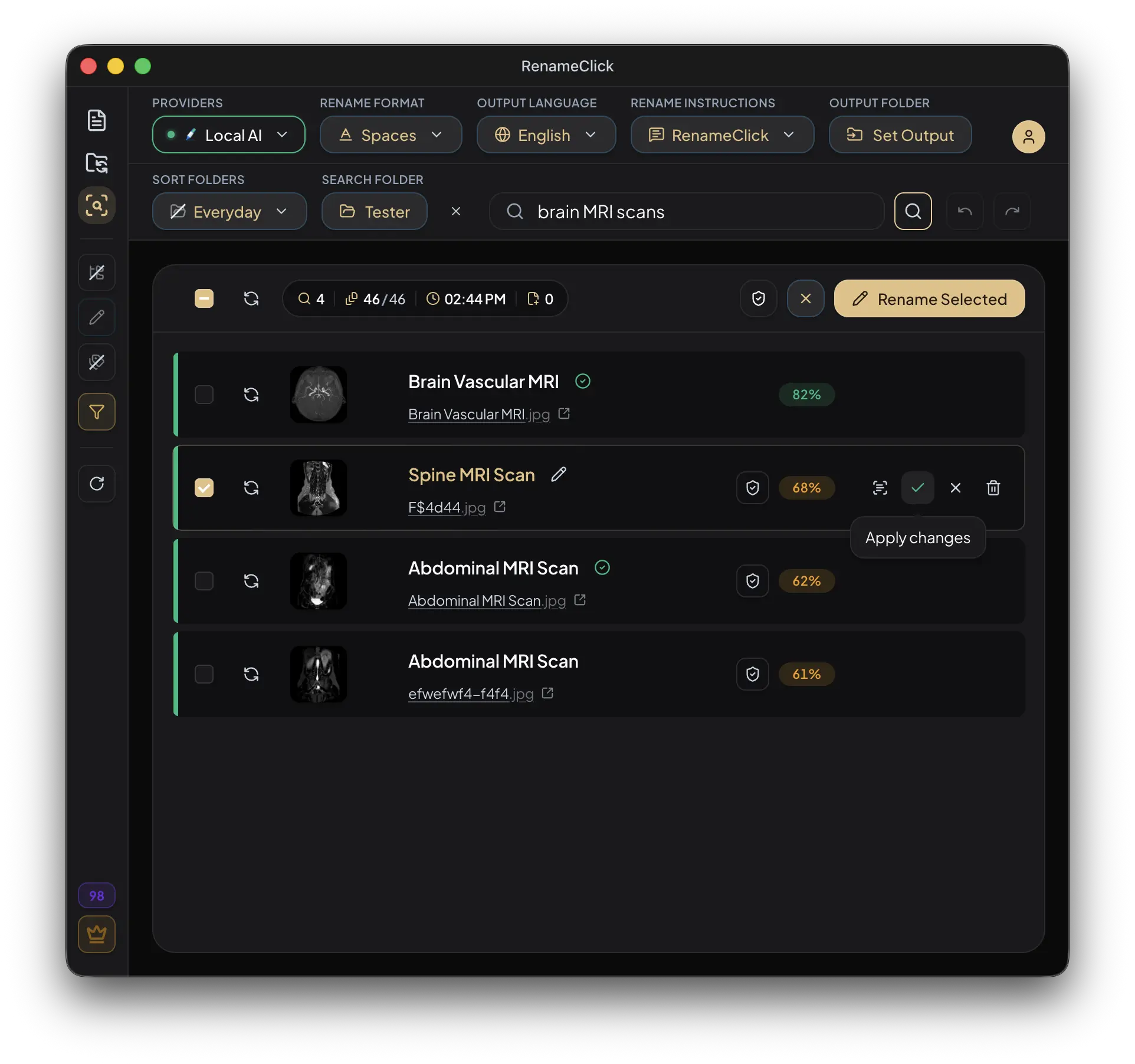
- Review matched files in the results list.
While search is running, the input is disabled to avoid conflicting state updates. You can stop search at any time, and partial progress/results remain visible.
Practical query examples
- “passport scan”
- “invoice from January”
- “signed contract with ACME”
- “blood test results”
- “receipt from amazon”
- “screenshot of billing error”
- “sunset beach photo”
Search across workspace folders, subfolders, and supported file types
AI Search can scan only the selected folder or include nested subfolders via a recursive toggle. Recursive mode is useful when your workspace is spread across many levels, like Documents/Clients, Scans/2026, or Downloads/Receipts.
For large folders, start with the smallest folder that matches your intent, then widen scope if needed. This gives you faster feedback and fewer false positives than searching your whole drive on day one.
Search supports the same file formats as rename processing:
Images
JPG, JPEG, PNG, GIF, WEBP, BMP, SVG, HEIC, HEIF, TIFF, TIF.
Documents
PDF, DOC, DOCX, TXT, MD, CSV, RTF, ODT.
The full list lives in the Supported File Types docs, including how text PDFs, scanned PDFs, and image-heavy files are handled.
One practical limit matters on very large folders: if the selected location contains more files than the current Batch File Limit (default: 30,000), search is blocked until you raise the limit in Local AI Settings or choose a smaller folder.
If the selected folder has no supported files, AI Search returns a clear empty state instead of showing a confusing “failed” flow.
If the next step after discovery is cleanup, continue with AI File Renamer for descriptive filenames or AI File Sorter for watch-folder automation.
Live counters and empty states
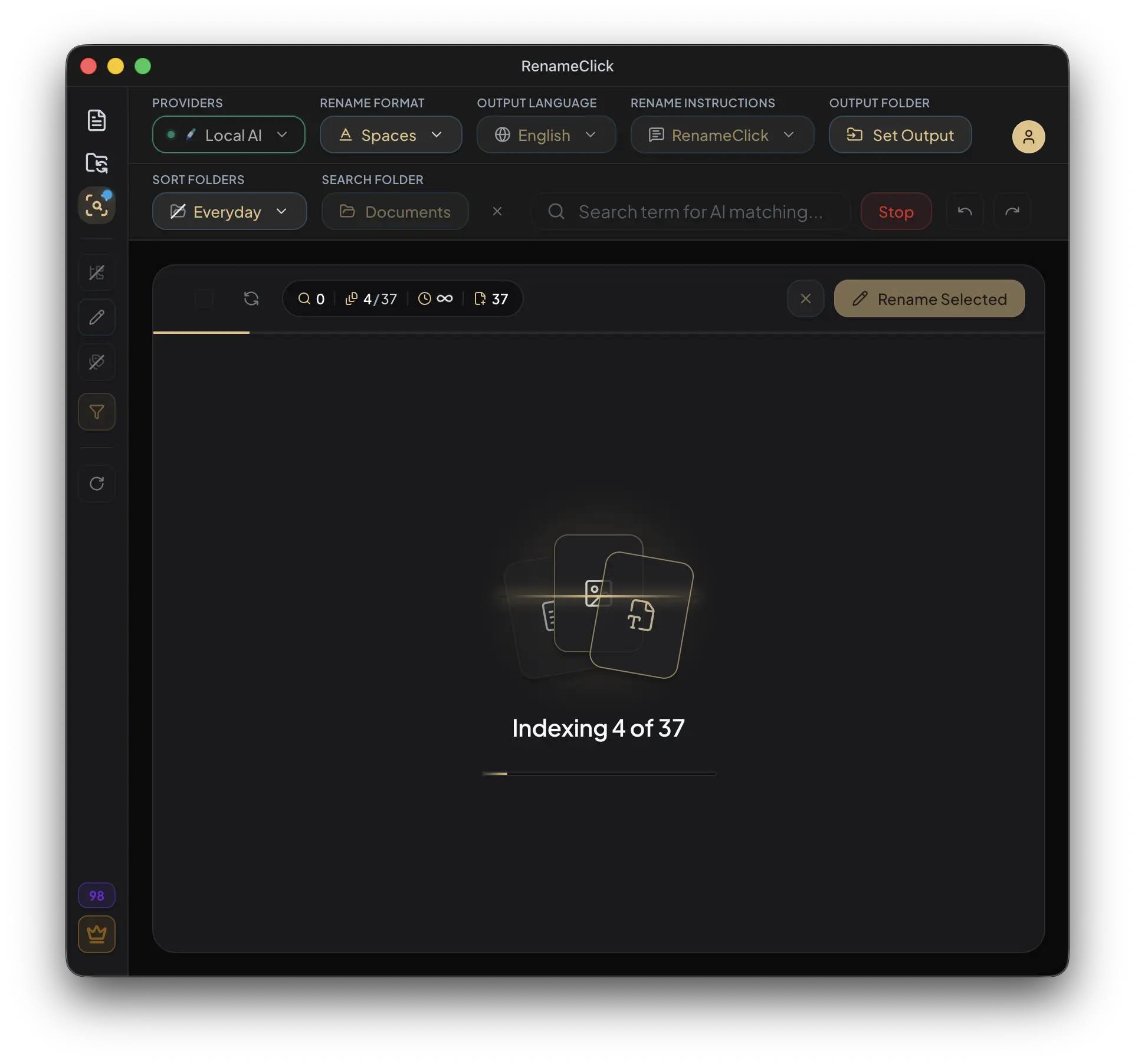
During processing, AI Search provides live progress counters so you can understand what the engine is doing in real time:
- Files in folder
- Processed
- Matched
- Errors
If processing is still running but no matches have appeared yet, the workspace shows an animated “Searching files with AI...” state. If search finishes with no matches, it switches to a clean no-match state.
This reduces uncertainty, especially on large folders where scanning can take time.
Result actions: reveal, exclude, and move to trash
AI Search returns a matched-files list in read-only mode. You do not apply rename/move changes here. Instead, each row includes lightweight follow-up actions:
- Reveal in folder to jump directly to the file location.
- Exclude from results to remove a false-positive from the current session view.
- Move to trash for obvious junk files.
This keeps search focused on discovery and triage, while rename/apply operations remain in dedicated workspaces.
Session persistence across app restarts
AI Search persists session state through app restarts so you can continue where you left off. The workspace restores:
- Search term
- Selected folder path
- Matched results list
- Progress counters
For users auditing large directories, this prevents wasted time rebuilding context after every restart.
This is one reason RenameClick works well for repeated document-library searches: you can stop, reopen the app, and continue from the last folder/query context instead of rebuilding the workspace from scratch.
Cross-workspace lock policy (safety against conflicting processing)
RenameClick enforces processing locks across workspaces to prevent race conditions and conflicting file operations.
While AI Search is running:
- Rename workspace processing is blocked.
- Auto Flow watch start is blocked.
- Provider switching/settings changes are blocked.
Search start is also blocked when Rename processing or Auto Flow watch is active. The UI shows explicit reasons via lock chips/tooltips, so users know exactly why Search is disabled.
Free usage and credits: what AI Search costs
AI Search is a free feature for all users. Searching files by content does not consume credits.
Credits are used only when you apply file-system changes in rename/organize workflows (for example: renaming or moving files on disk).
Simple pricing rule
Discovery is free. Apply operations consume credits on the Free plan.
Privacy: local-first AI file search
RenameClick is local-first. With local provider settings, files are analyzed on-device without uploads, which is critical for sensitive documents and personal photos.
If you choose cloud providers, network usage depends on the provider you selected. The app keeps this explicit by tying behavior to your active provider choice.
Best practices for better AI search results
- Use specific intent phrases, not one-word generic queries.
- Enable recursive mode for archive folders with nested structure.
- Start from a narrower folder to reduce noise on broad queries.
- Expect conservative matching: primary subject matters more than incidental mentions.
- Use Exclude for false positives to keep review focused.
If your workflow is specifically “search across all my documents,” continue with How to Search Across All Your Documents with AI for the exact workspace-search setup.
Want to continue from search into file cleanup? Read AI File Renamer for naming workflows, AI File Organizer for category-based sorting, and AI File Sorter for watch-folder automation.
FAQ
Can I search across all my documents with AI?
Is AI Search in RenameClick free?
Can AI Search scan subfolders recursively?
Is this document search or workspace search?
What files can AI Search analyze?
What happens if my folder has more than 30,000 files?
Can I rename files directly from AI Search?
What happens if Auto Flow is already watching folders?
Want to try this workflow?
RenameClick runs offline by default and helps you rename and organize files by content — with a review-first flow.